


This guide does one job! It connects Google Search Console to Claude, so Claude reads your site’s Search Console data directly. That means clicks, impressions, queries, pages, index status and even sending URLs for indexing, and you don’t pay a cent to any middleman service. You only need a paid Claude plan. The rest is free!
I’m Mohsen Tavoosi, and I set this up on my own sites and projects, spent days fighting its errors, and put everything here. Every step has its own screenshot, the config is ready to copy, and I’ve included the 18 real errors and quirks I ran into myself, each with its fix.
I don’t write a single line of code, and you won’t be learning to code here either. You don’t need to, so don’t worry. Wherever something has to be typed, the text is ready and you just copy it!
Why connect the Google Search Console MCP through Claude Desktop and not Claude on the web?
Because when you use Claude in the browser, all the processing happens on Anthropic’s servers. Those servers can’t reach your computer! Claude Desktop works differently. Part of the work moves onto your own computer. In other words, your computer plays the role of the server, and that is why this method is free!
This has two consequences you should know from the start:
- This connection only works in the Claude Desktop app. On claude.ai and in the mobile app, you won’t see Search Console.
- If you give Claude a task that needs Search Console data, keep the computer on.
Here you may ask: I already log in with my Google account, so why do I need a program in the middle? Because logging in to Google only gives permission. It doesn’t move any data. A program has to keep that permission (the token), use it to pull data from the Google Search Console API, and hand the data over in a language Claude understands (the MCP protocol). With this method, that program runs on your own computer. At the time of writing, Google has not released an official MCP server for Search Console.
| The method in this guide (server on your computer) | Ready-made online connectors | |
|---|---|---|
| Where it runs | On your own Windows PC | On another company’s server |
| Where it works | Only in the Claude Desktop app | Claude Desktop, web and mobile |
| When the computer is off | Doesn’t work | Works |
| Cost | Free (only your Claude plan) | Usually paid, or a small free quota |
| Where your Google token is kept | On your own computer | With that company |
I tried a few other ways before this one. One was an add-on that puts Search Console data into Google Sheets. The other was exporting a CSV file and giving it to Claude. Both work, but neither is a real connection, and with several sites they get tiring very fast!
What do you need before you start?
Get these ready:
- A paid Claude plan. On the free plan the usage limit runs out very quickly, and this guide is about the paid version.
- Windows. All the paths and screenshots in this guide are for Windows.
- A Google account that has access to your site in Search Console. If you want to send URLs for indexing, this account needs Owner access. Full is not enough.
- About an hour of time and patience! It takes a while the first time, and only a few minutes after that.
Step 1. How do you install Claude Desktop and Node.js?
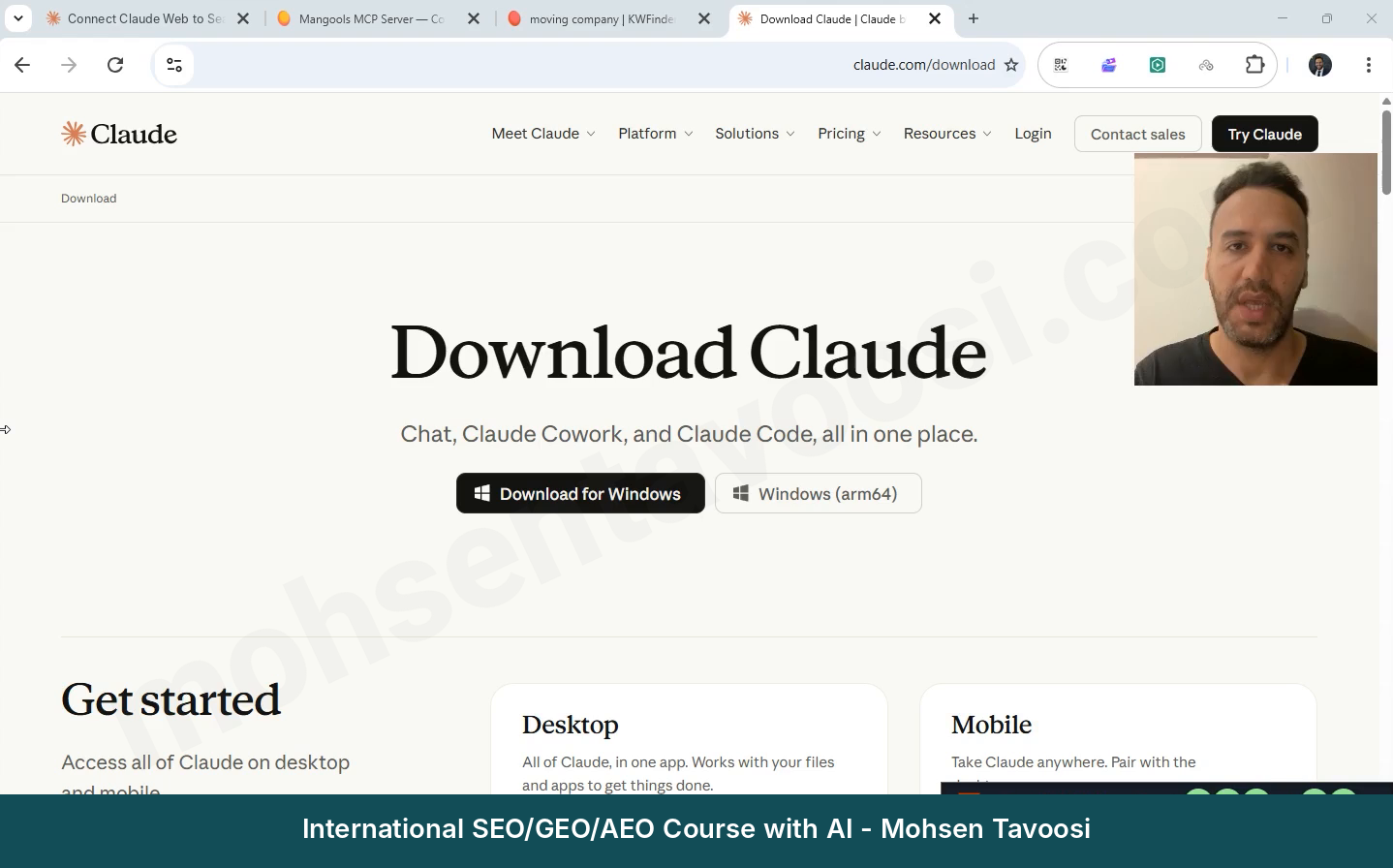
First, get Claude Desktop from Claude’s own download page and install it. Choose the Windows version.
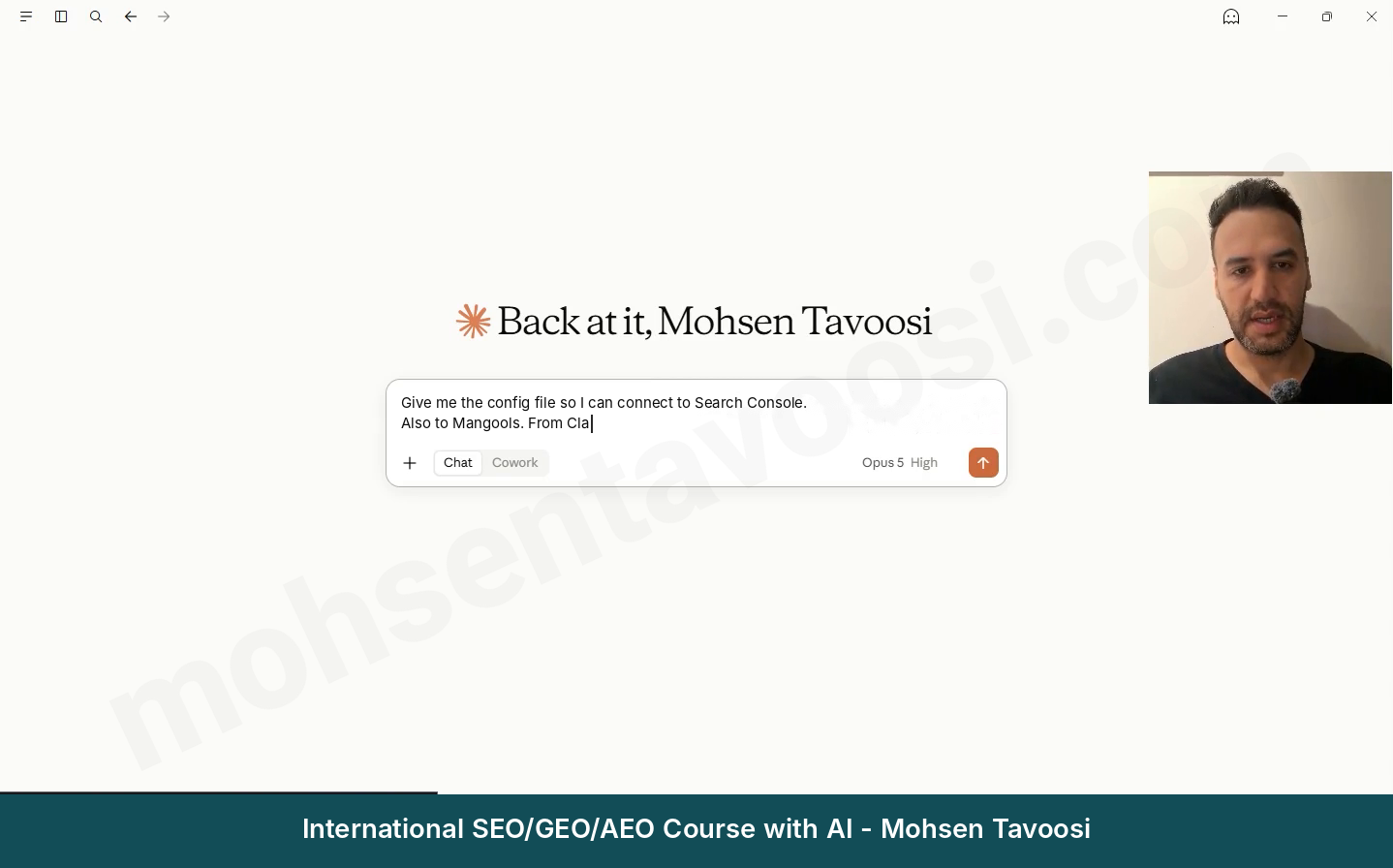
After you install it and log in, the app’s home screen looks like this:
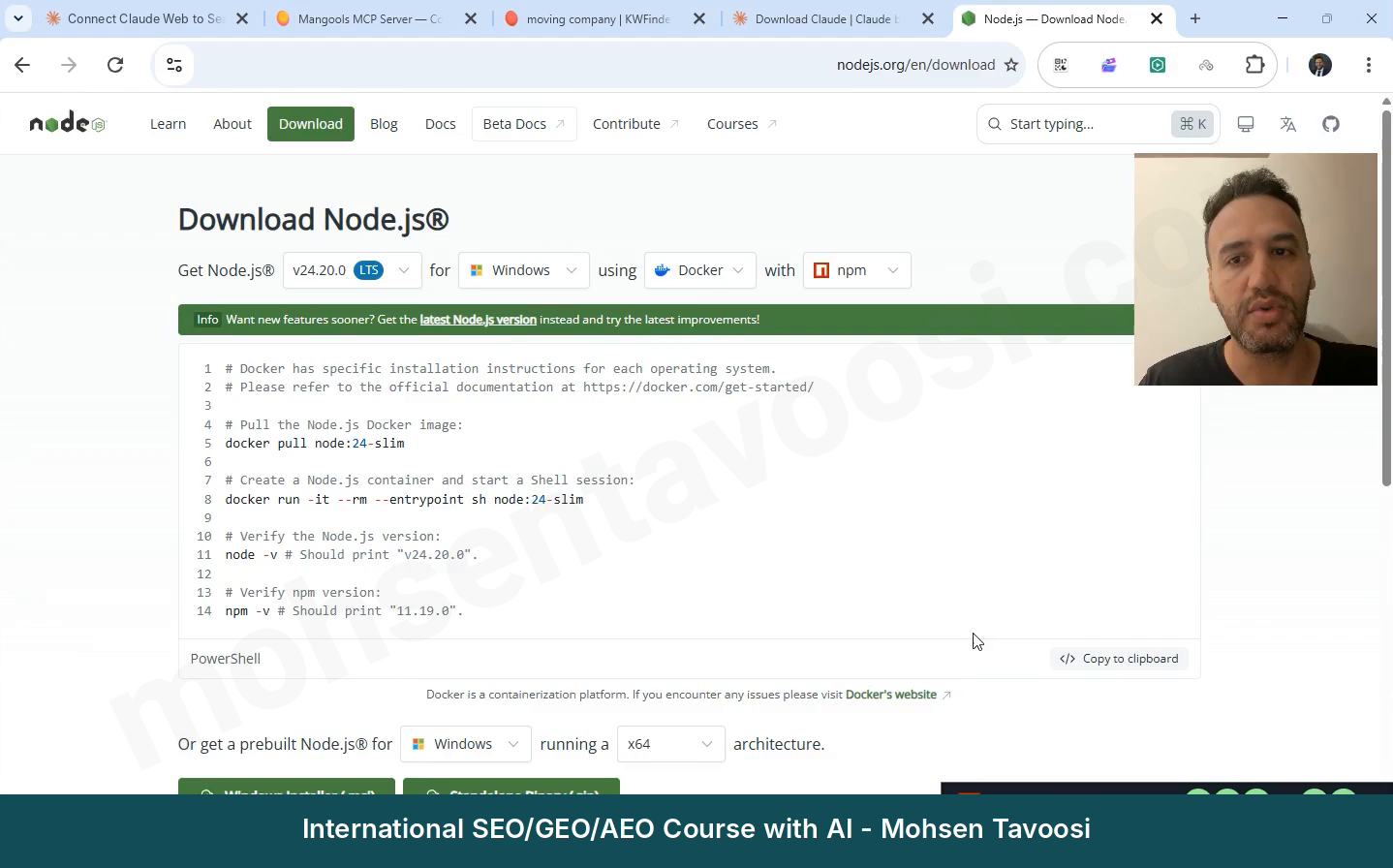
Next comes Node.js. A lot of people get scared here. What is Node.js, and what does it have to do with me? Don’t worry about it at all. It’s like the extra programs a game needs before it can run. You install it once and never touch it again. From its site, download the LTS version for Windows (the Windows Installer, the file ending in .msi). Then click only Next and Install, and don’t change any setting.
To check that it’s installed, open Command Prompt and type this:
If it returns a number like v24.20.0, it’s installed. No number? Close Command Prompt and open it again. Without Node.js the Search Console server won’t start at all, and this is the most common reason the setup fails!
Step 2. Where is the Claude Desktop MCP config file, and what does it look like?
In Claude Desktop, click your account name at the bottom left and go to Settings. In the Desktop app section, click Developer and then the Edit config button. A folder opens with the claude_desktop_config.json file in it. On Windows, the path is:
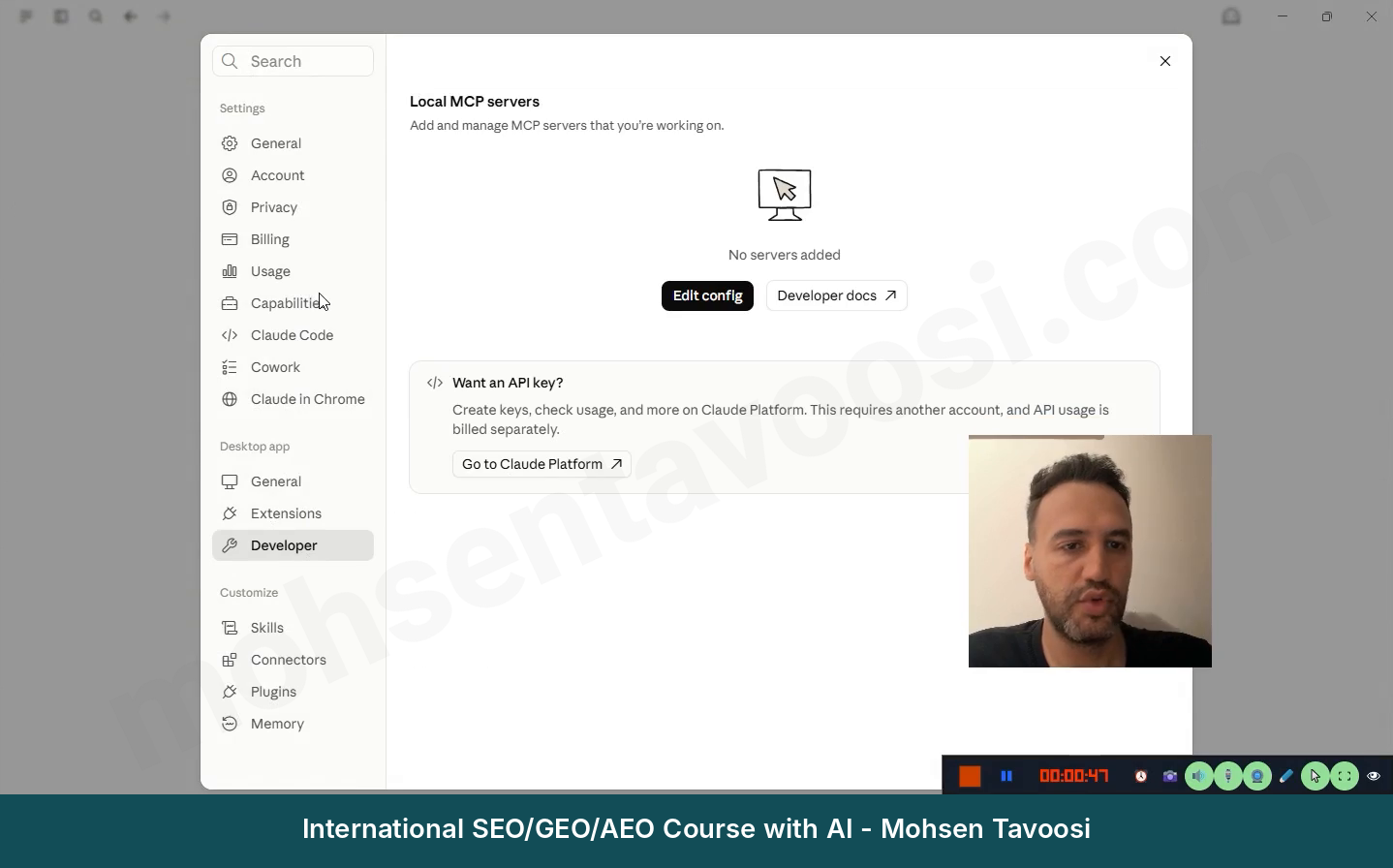
These menus keep changing their names. One day it’s under Developer, another day under Extensions or Connectors. But there is always a JSON config file where the MCP servers are defined. Everything depends on this one file!
Now the hard part. Once you learn it, the rest is easy. Inside this file there is a section called “mcpServers”. The section opens with a curly brace, each server gets its own block inside it, and a closing brace ends the section. A comma goes between server blocks, and there is no comma after the last block. If a single brace or comma is missing or extra, the whole file breaks and no server starts!
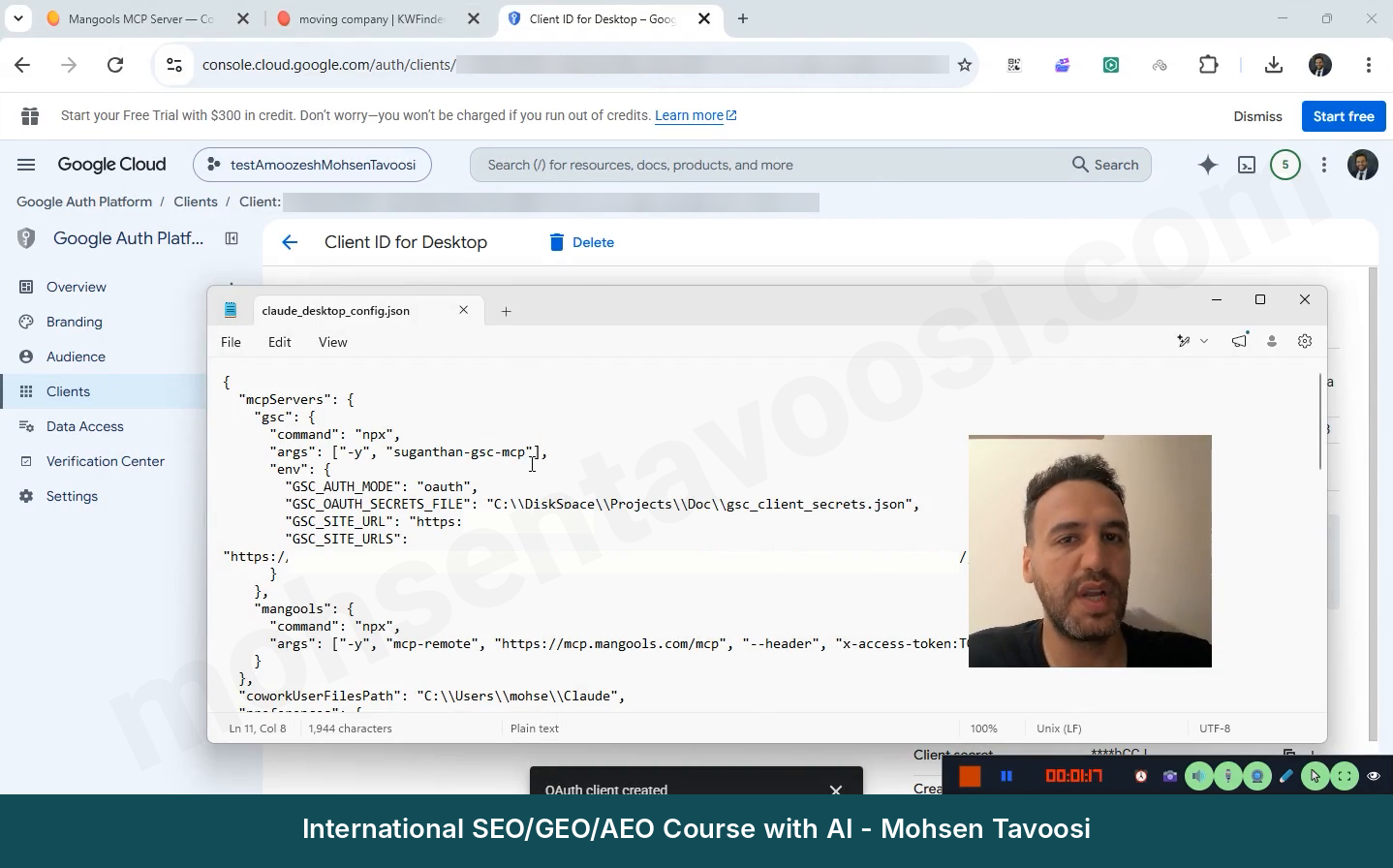
This is very important! Your config file holds more than mcpServers. Claude also saves its own settings in this same file (the “preferences” section). So never delete the whole file and never rewrite it from scratch. Only add the server block. I once replaced the whole file and lost another of my connections, one that wasn’t in my backup!
Not sure about the braces? Give the whole file to Claude. Ask it to check the braces and commas and give you back the complete, fixed file. But close this file for now, because first we need to create the Google key.
Step 3. How do you create a project in Google Cloud?
Go to Google Cloud Console and log in with the same Google account that has access to the site in Search Console. This is very important! If you log in with the wrong account, you won’t see any site at the end.
At the top of the page, next to the Google Cloud logo, there is the project picker. Click it, then click New Project and give it a name. I named my project testAmoozeshMohsenTavoosi. You can use any name you like. Leave Organization on No organization. With a personal Gmail account this is the normal choice and causes no problem! Then click Create.
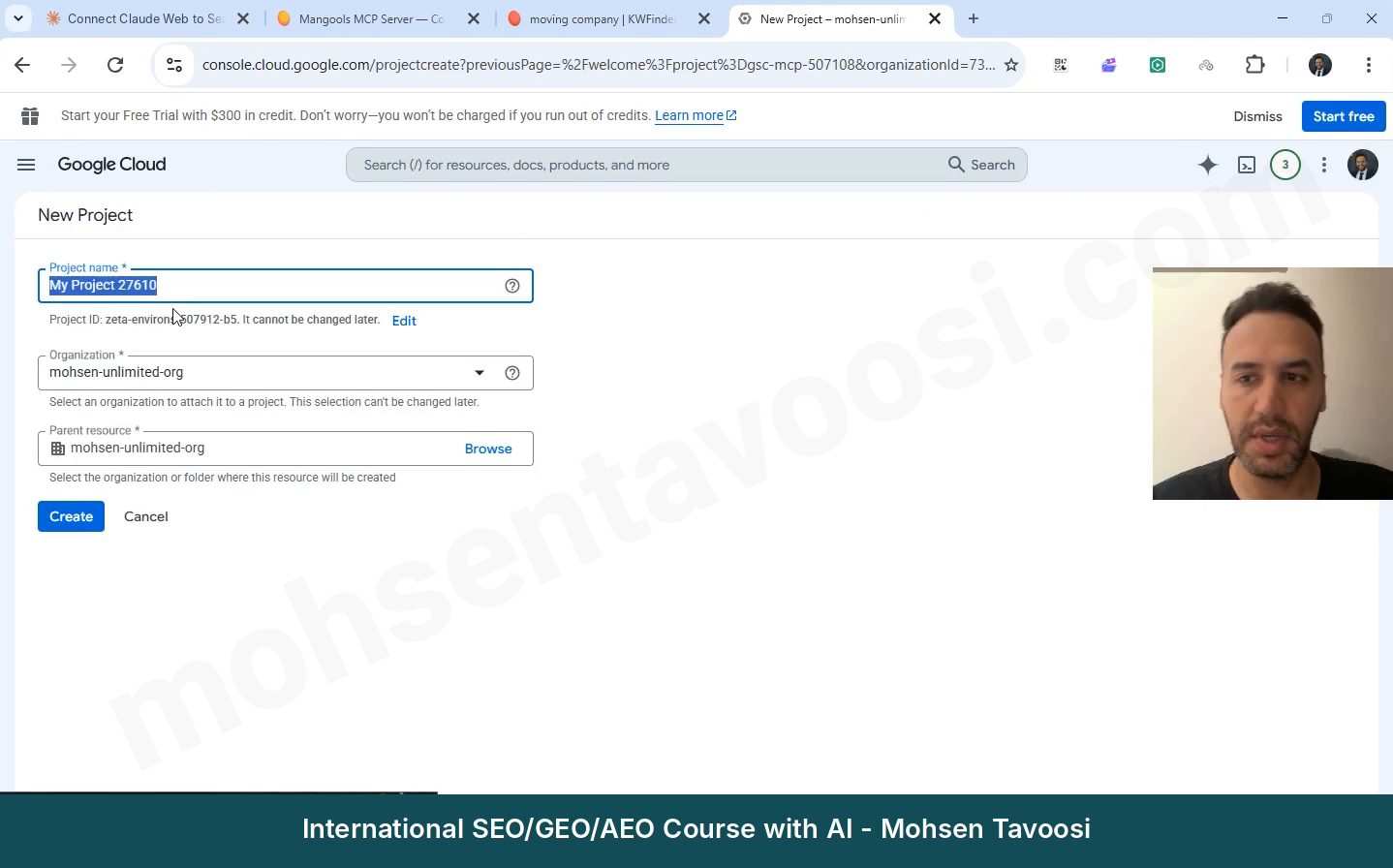
You may see a warning about how many more projects you can create. Don’t worry about it. It only shows your account’s project quota. You also need just one project for all your sites, not one project per site. Access to the sites comes from your Google account, not from the project.
Now the part where I got stuck many times myself! After you create the project, look at the top of the page and make sure the new project is selected. A message also appears at the bottom of the page telling you which project you are looking at. Sometimes the project picker is set to a different Organization and shows the old project. If you miss this, you enable the API on the wrong project and then have no idea what went wrong!
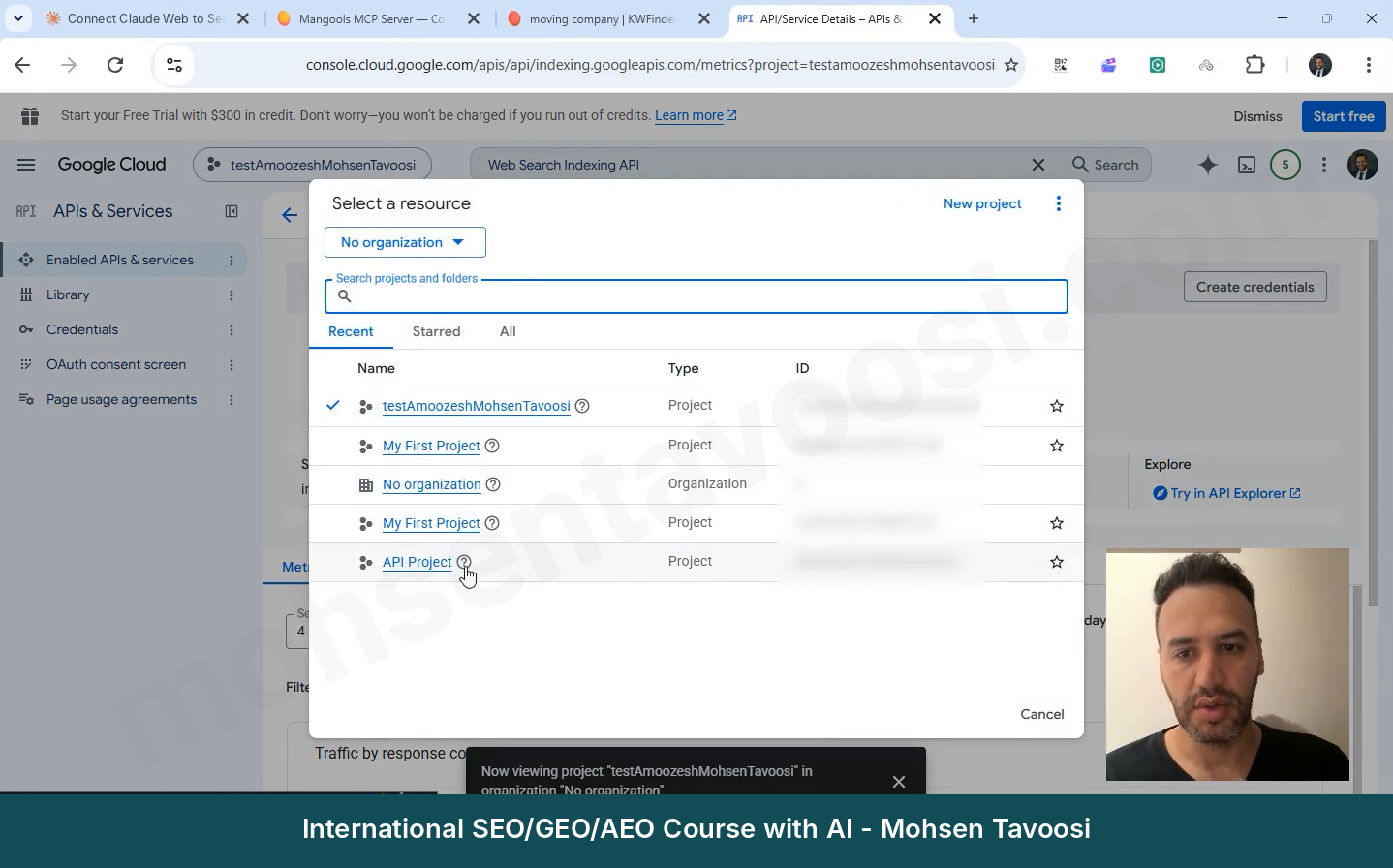
Google moves its menus around all the time. If what you see in my screenshots is different from your screen, take a screenshot of your page and ask Claude, or any other AI, where the button you need is. Even free AI tools are a good help here.
Step 4. Which APIs do you need to enable in Google Cloud?
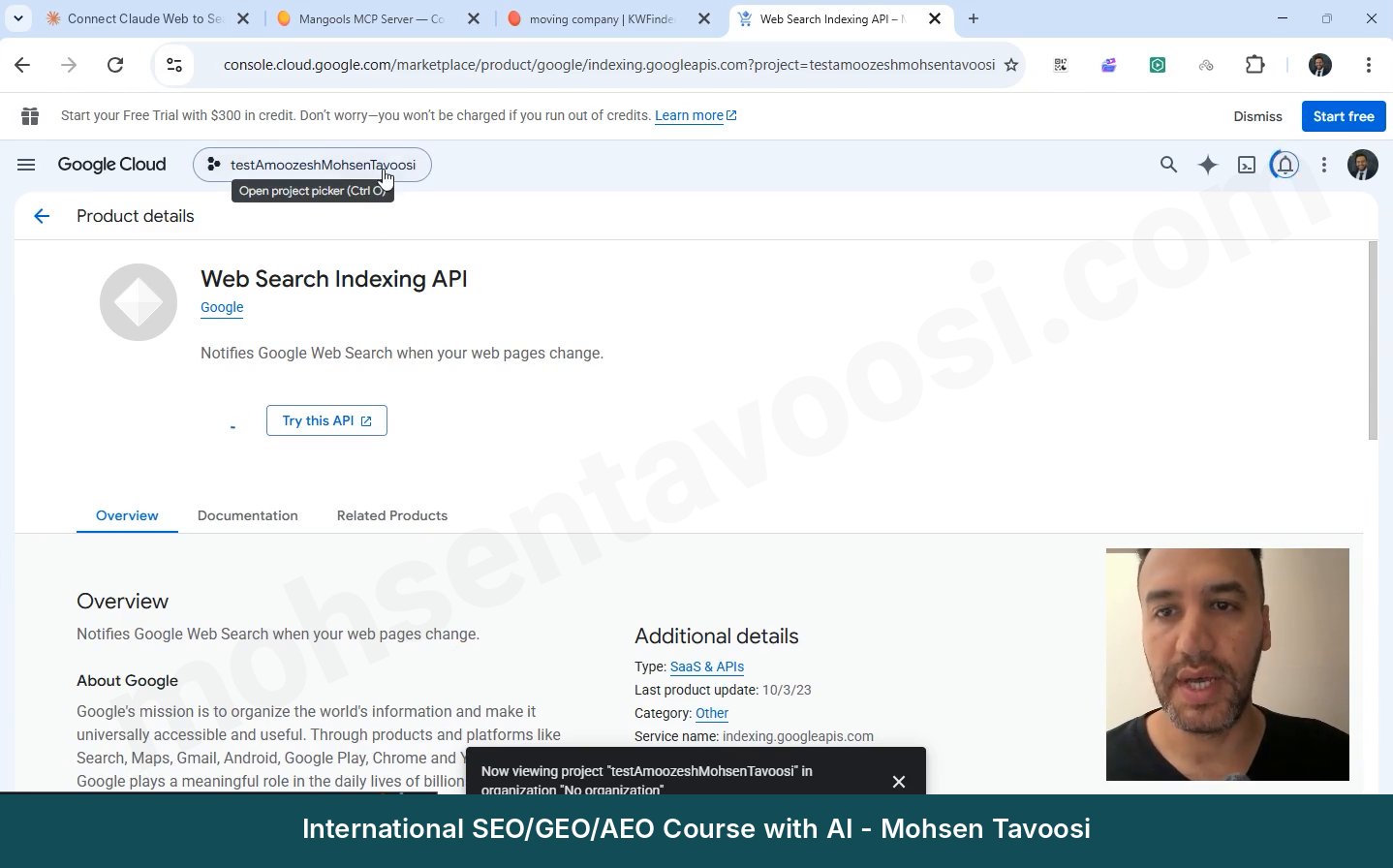
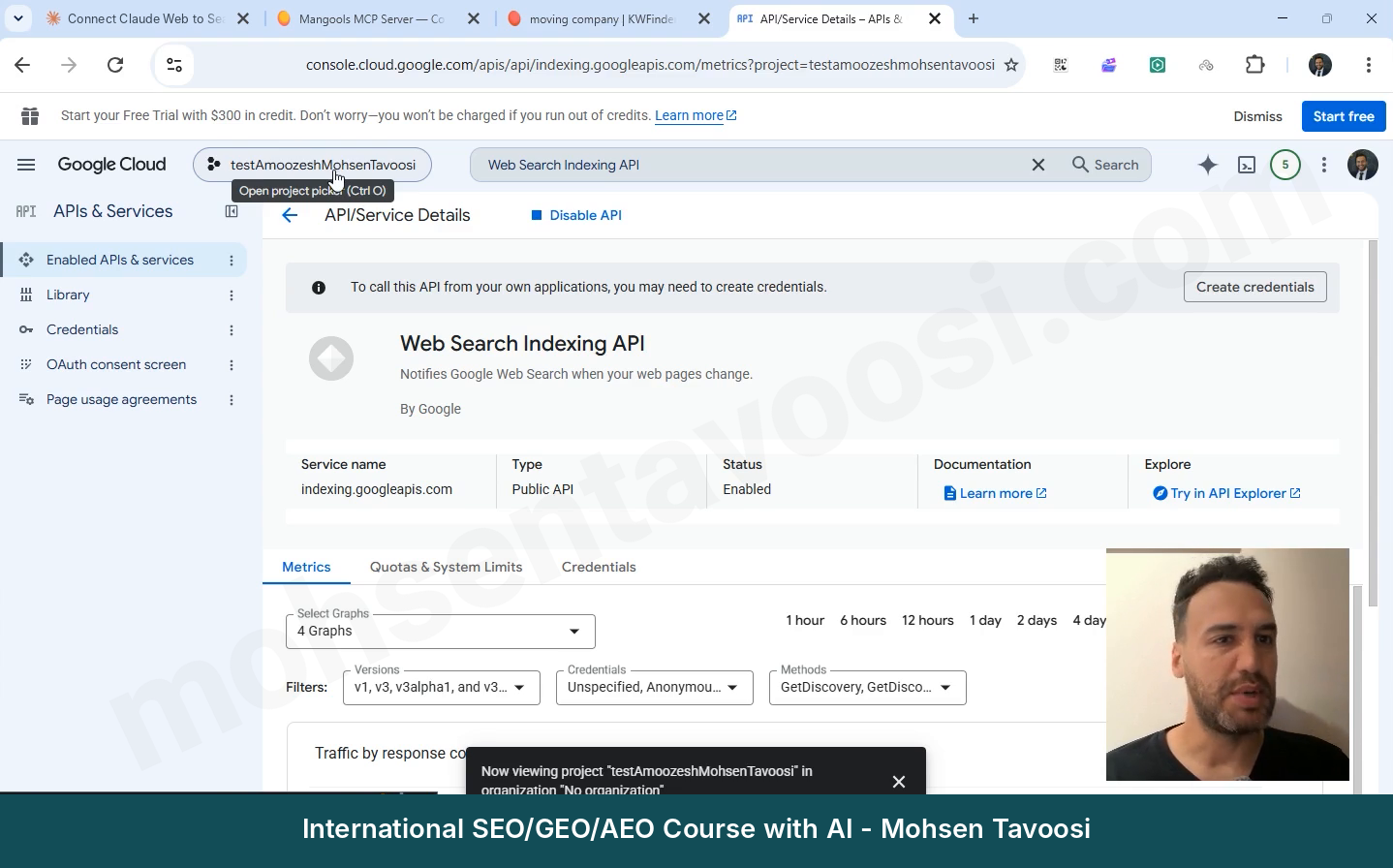
You need two APIs. In the search bar at the top of Google Cloud, type Google Search Console API, open it and click Enable. If you see a Manage button and the words API Enabled instead of Enable, it’s already on and there is nothing to do. And don’t click the Disable API button by mistake!
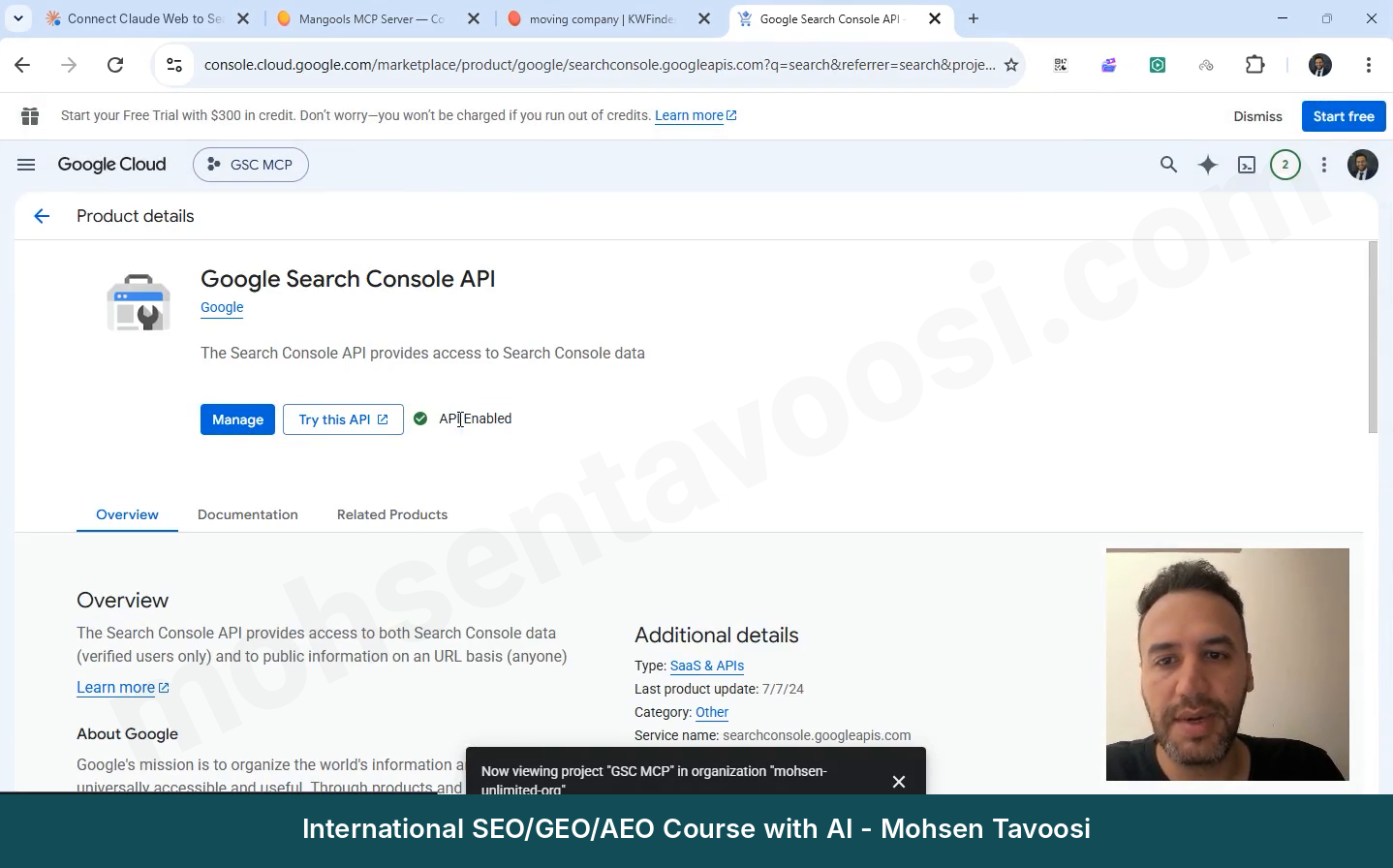
Then do the same for the Web Search Indexing API. This second one is for sending URLs and sitemaps for indexing. Enable it even if you don’t need it right now. It’s free, and coming back here later is a pain!
Step 5. What is the Consent Screen and how do you fill it in?
The Consent Screen is the page that pops up when you sign in to a site with Google and asks whether some app may access your information. For example, when you sign in to LinkedIn with Google, you see this page:
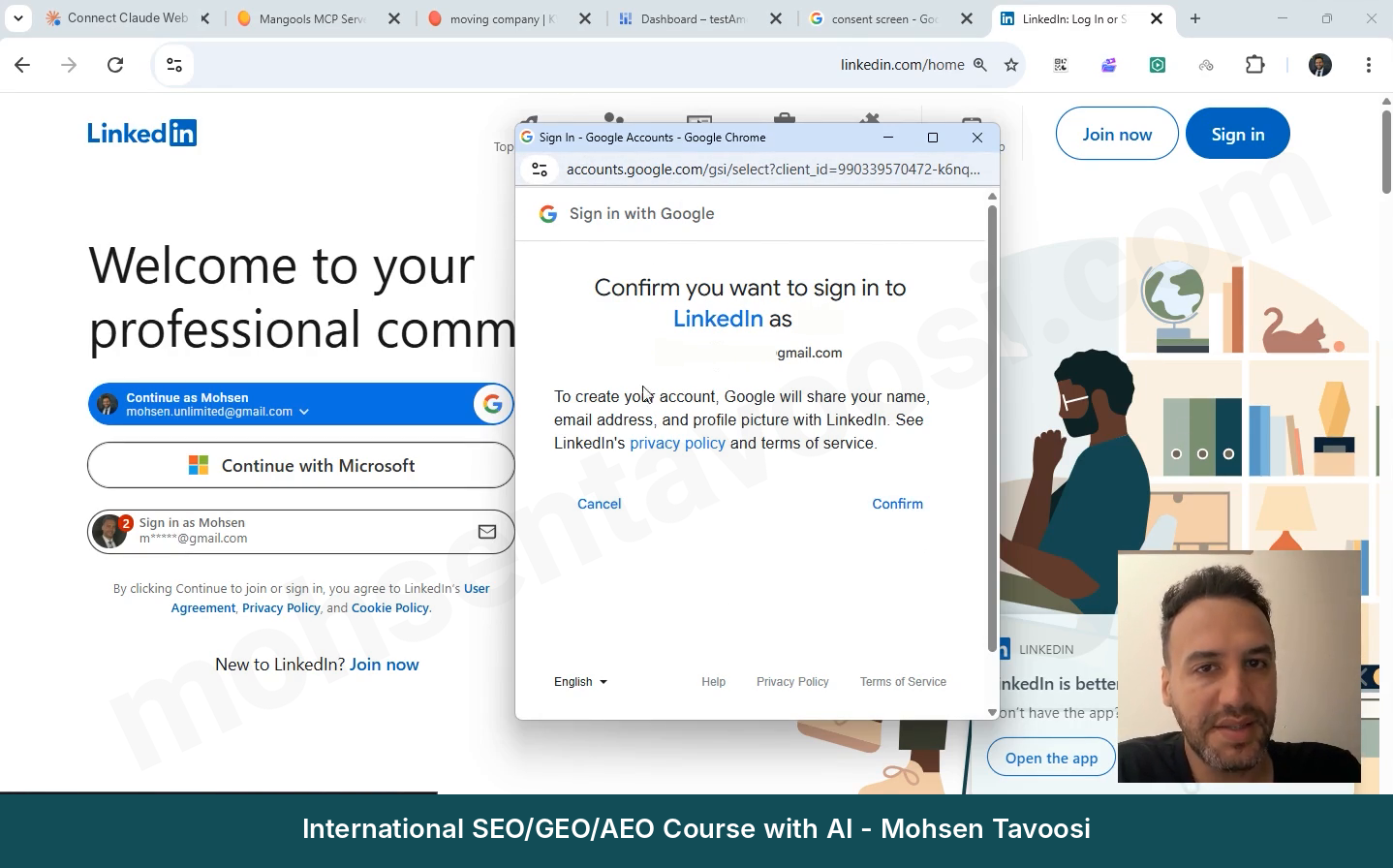
Here, our app is the connection between Claude and Search Console. Google builds this page itself, but you have to tell it the app name and the support email. Until this page is set up, Google won’t let you create a key.
From the left menu, go to Google Auth Platform (in some accounts it’s under APIs and Services, called OAuth consent screen) and click Get started.
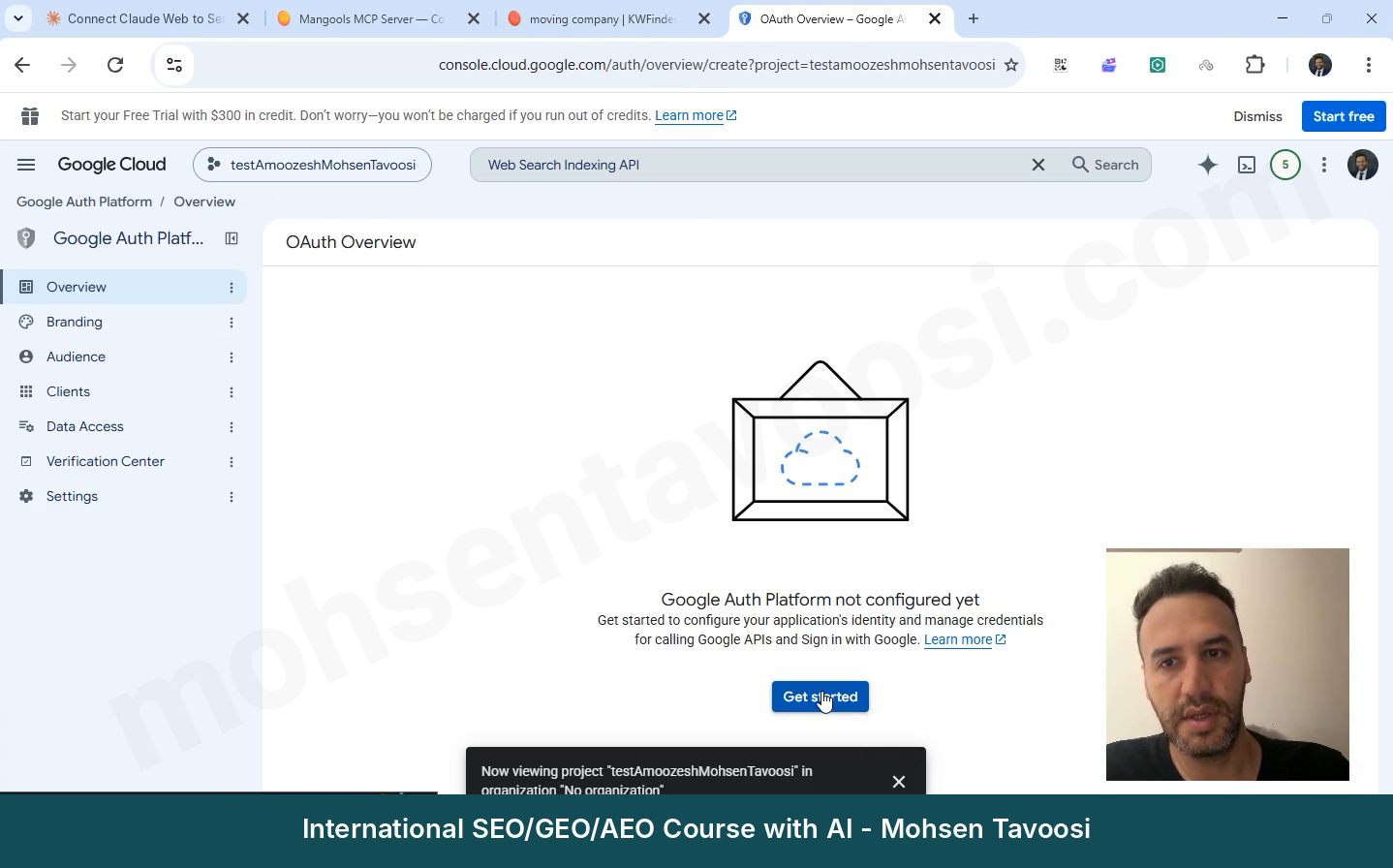
Fill in the fields like this:
- App Information. Any app name you like. I used GSC Mohsen Tavoosi Tutorial. For User support email, choose your own Gmail address.
- Audience. Choose External. Internal is only for organization accounts.
- Contact Information. Your own Gmail address again.
- Finish, then Create.
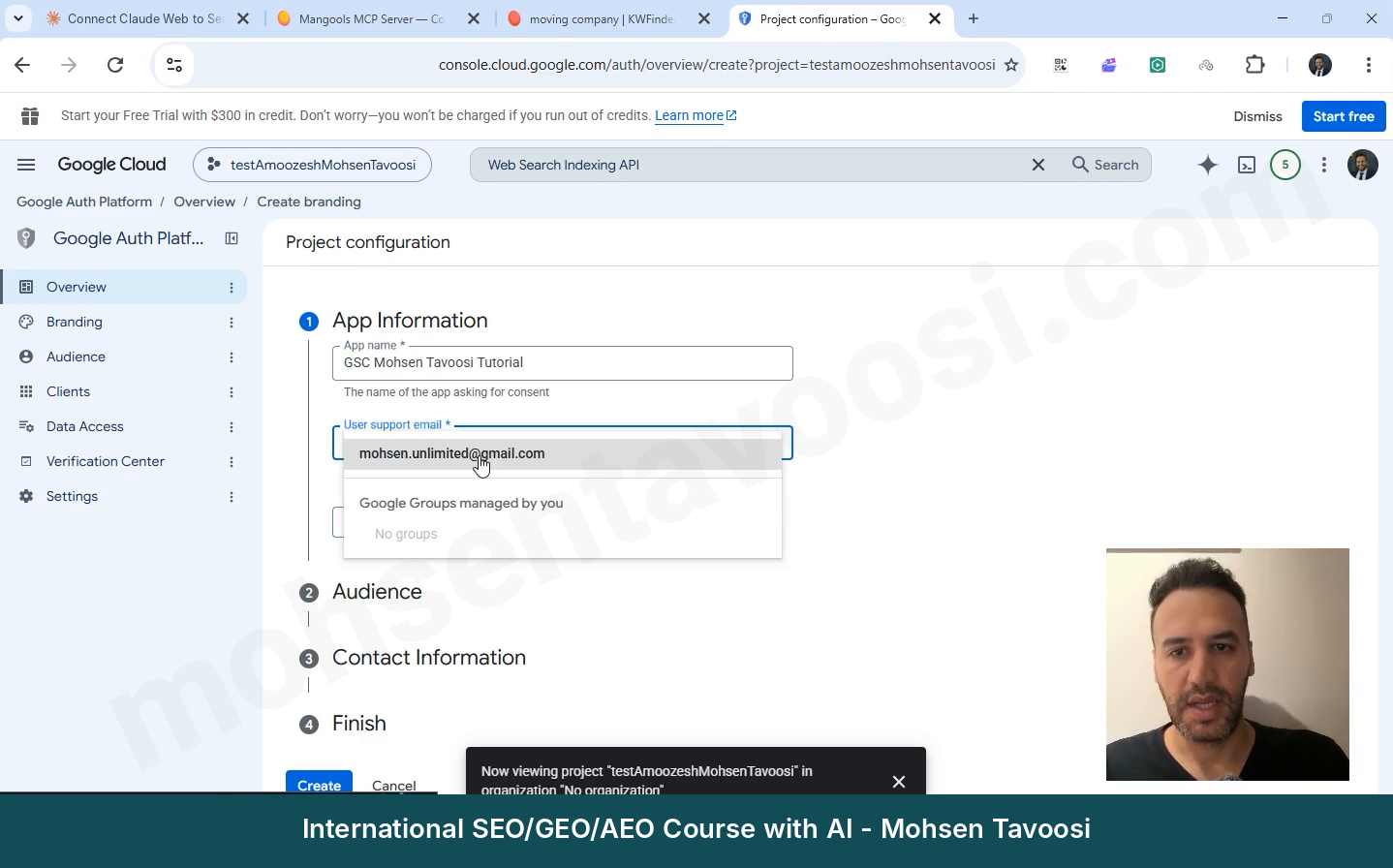
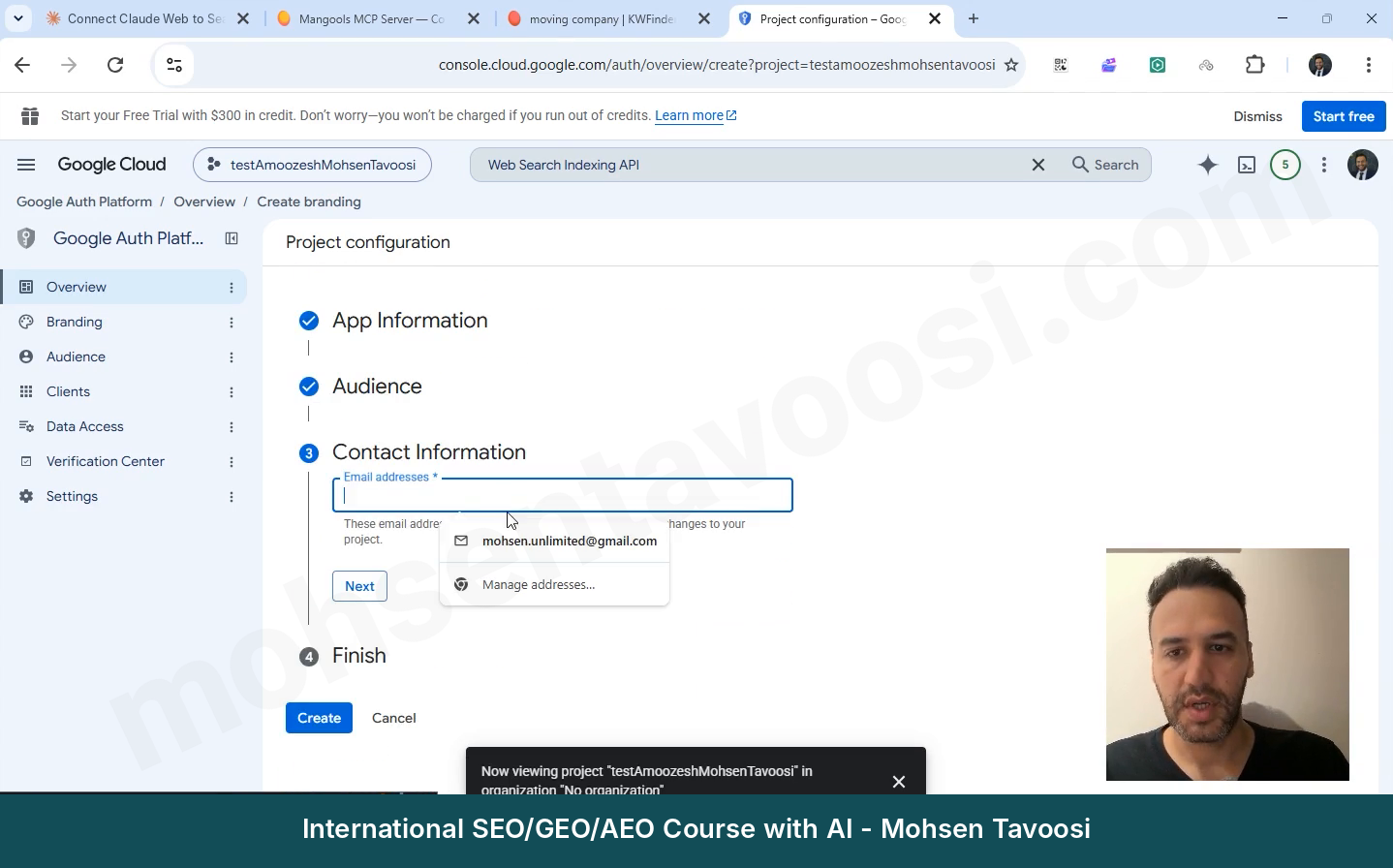
Leave the logo, the domain and the privacy policy link empty. For an app that only you use, you need none of them!
After the app is created, two more things are left in the Audience section. Skip them and you get stuck later:
- In Test users, add your own Gmail address. Even if you own the project! Google doesn’t add the project owner automatically.
- Click Publish app, so the app moves from Testing to Production. If it stays in Testing, you have to log in again every 7 days. Since you are the only user, Google doesn’t ask you for any review.
Step 6. How do you create the OAuth Client ID and the JSON file?
Now for the main key. Go to APIs and Services, then Credentials. Click Create credentials and choose OAuth client ID. In Google’s new interface, the same section is also under Google Auth Platform, with the name Clients.
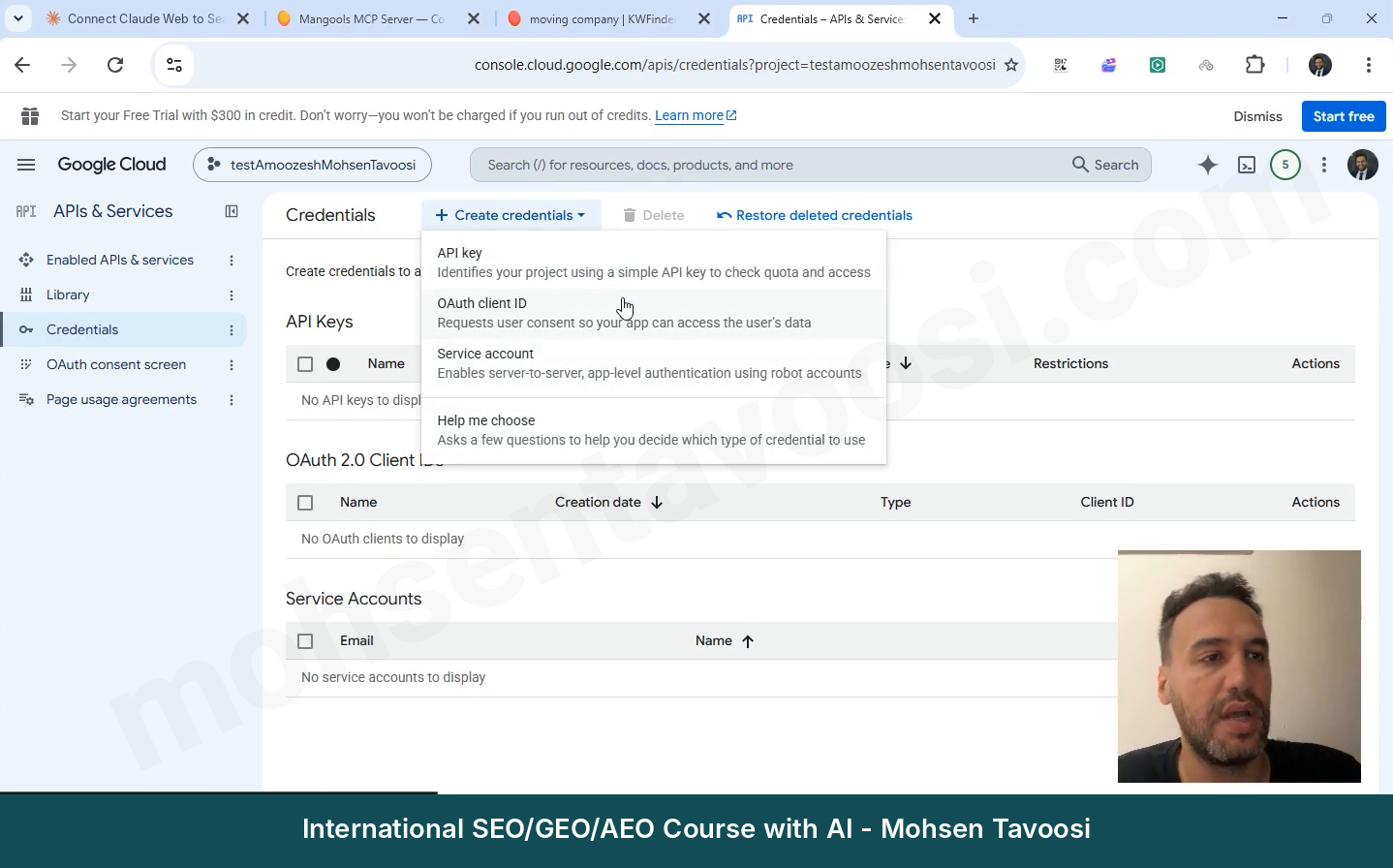
Among the options, the right one is OAuth client ID. Not API key, and not Service account! Search Console doesn’t work with an API key, because this is your personal data and Google has to be sure you are the site owner.
For Application type, choose Desktop app. This is the most important choice on this page! If you choose Web application, you get a redirect error when you log in. Give it a name too, and click Create.
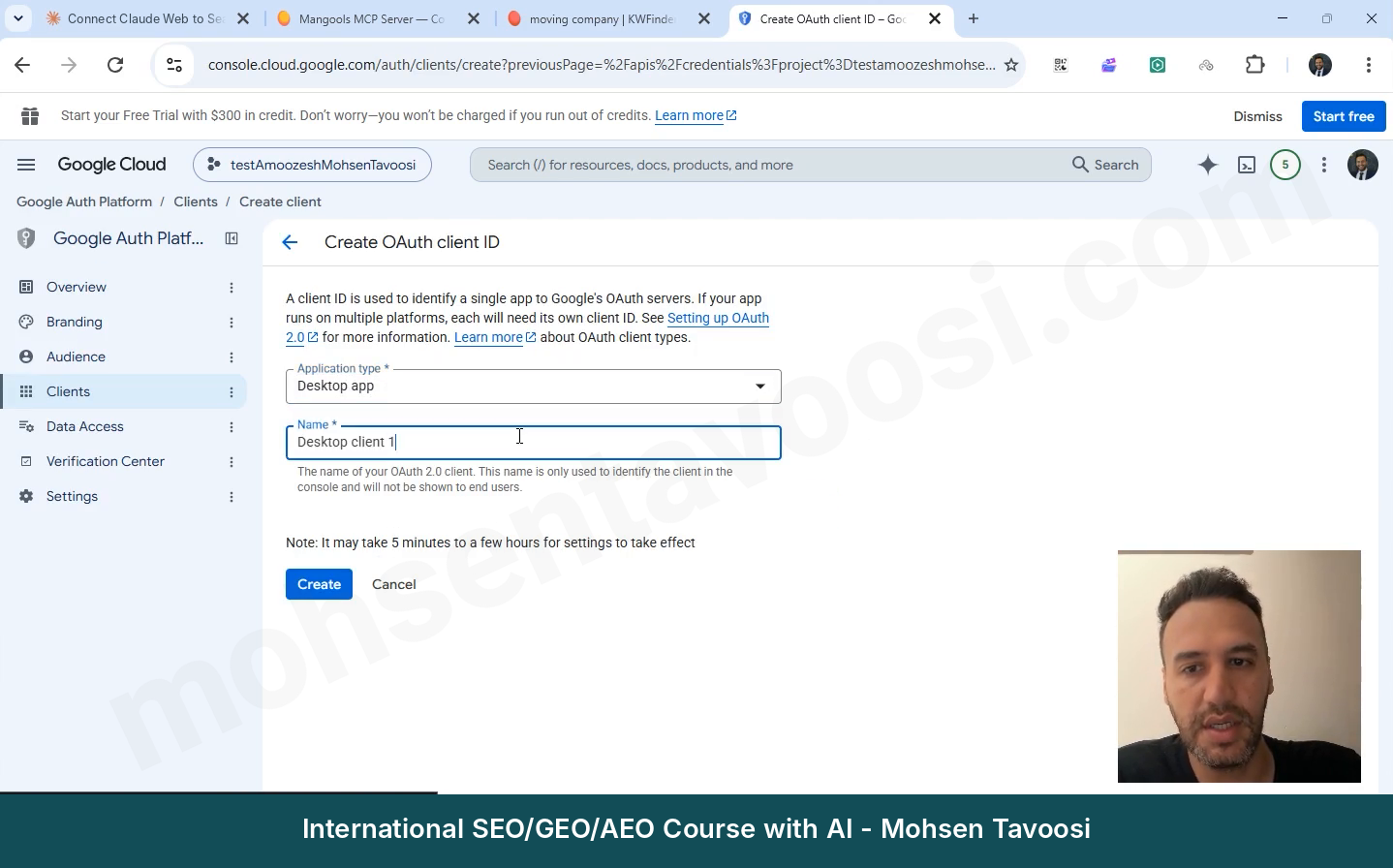
Next, the OAuth client created window opens with a Client ID and a Client secret. Think of these two as a username and a password. Click the Download JSON button.
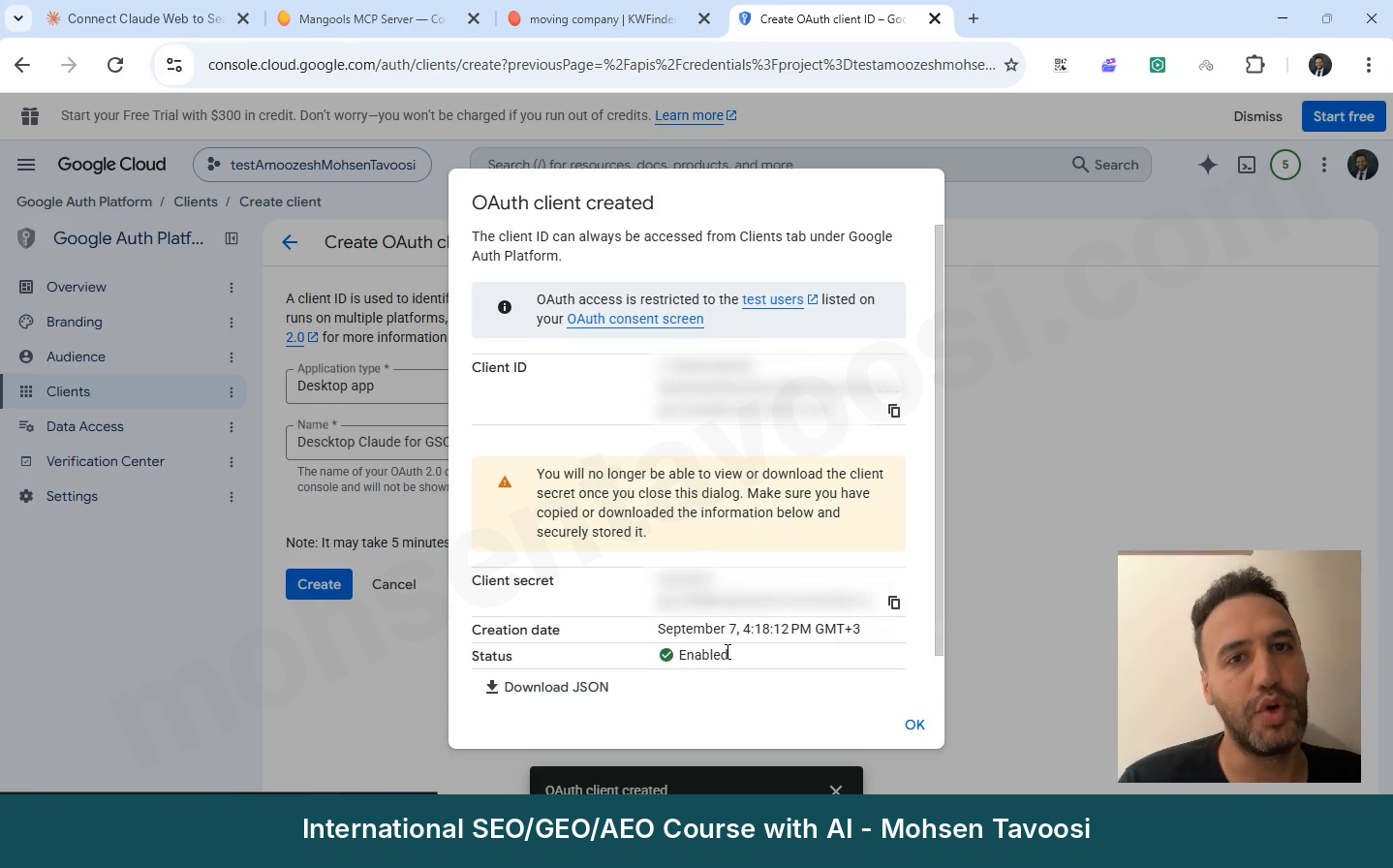
If the button to create the key is not active, the Consent Screen (the previous step) is not fully filled in yet.
Step 7. Where do you put the JSON file, and how do you write the config?
Your downloaded file has a very long name, something like client_secret_1150…apps.googleusercontent.com.json, and it’s in your Downloads folder.
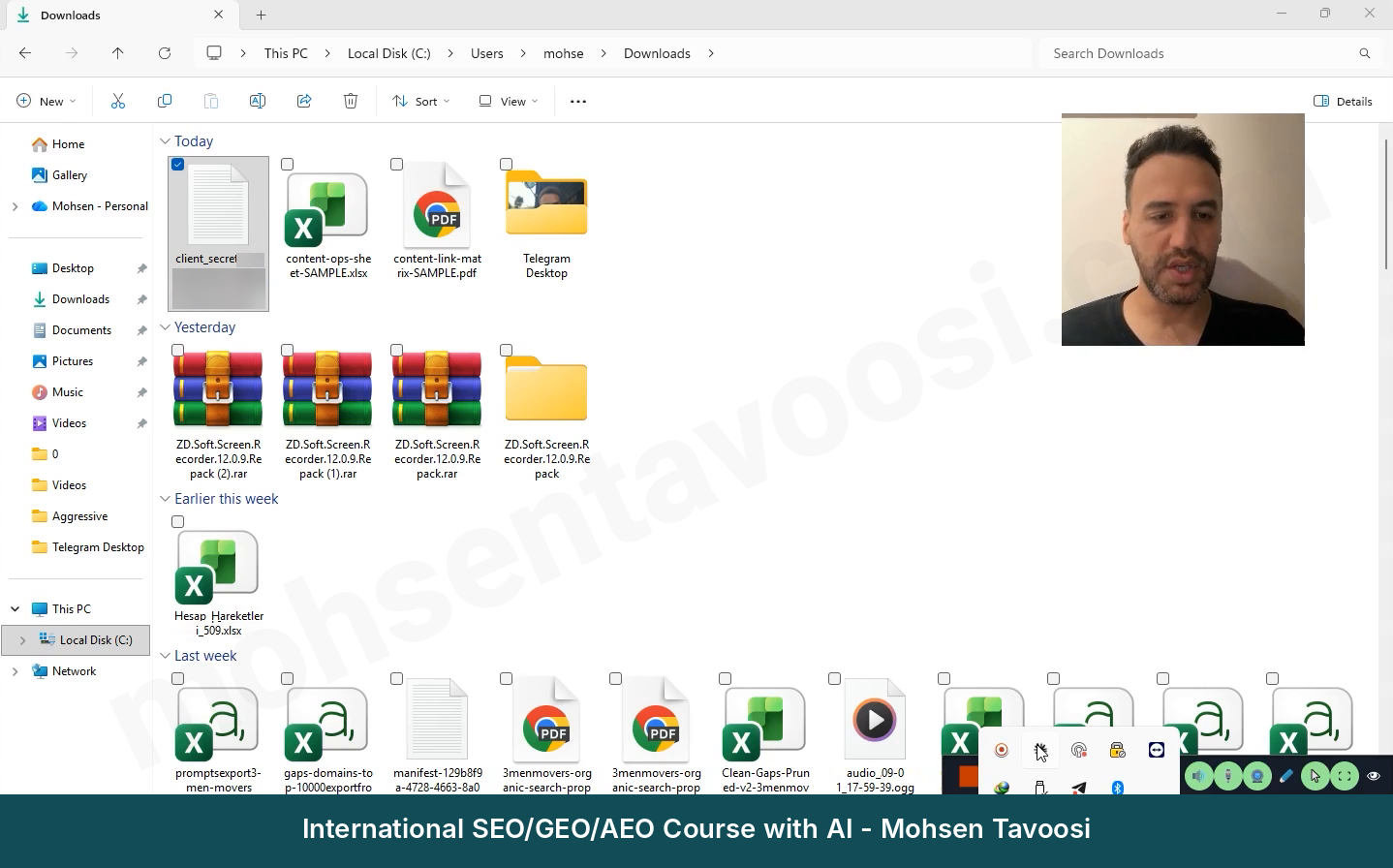
My advice is not to leave the file in Downloads. Make a fixed folder (for example, a folder called mohsentavoosi-gsc inside Documents), move the file there and give it a short name, for example mohsentavoosi-gsc-secret.json. Then hold Shift, right-click the file and click Copy as path, so the full path is copied.
Now close Claude Desktop completely and open the config file. If the file is empty or only has {} in it, replace it with all of this:
If the file already has other things in it, only add the “gsc-mohsentavoosi” block inside “mcpServers” and put a comma between the blocks.
The server we use here is a free, open-source program called suganthan-gsc-mcp, with about 28 tools for Search Console. You don’t need to install it separately. Your config’s npx command downloads and runs it on its own.
You need to change three things:
- Replace YOURNAME with the name of your Windows user folder. It’s better to paste the whole path you got with Copy as path.
- Double every backslash (\) in the path. That means C:\Users becomes C:\\Users. If you leave them single, the file breaks and the server won’t start! Don’t forget the .json extension at the end of the path either.
- Put your own site address in place of mohsentavoosi.com.
The site address has a trap that costs many people hours. Your address format must match the one registered in Search Console exactly:
- If your property is a Domain property (Search Console shows it without https), write sc-domain:example.com
- If it’s a URL prefix property, write the full address with https and the slash at the end, like https://example.com/
- If it was registered with www, the www has to be there too.
If you have several sites, write all of them in GSC_SITE_URLS, one after another, separated by commas with no spaces. GSC_SITE_URL is the default site, and it must also be in the list:
Save the file with Ctrl+S and close it.
Step 8. How do you fully close Claude and open it again?
This step looks simple, but half of the errors come from here! When you close the Claude window with the X, Claude doesn’t actually quit. Its icon is still at the bottom of the screen, next to the Windows clock, and Cowork or another task may still be running for it in the background.
So do this:
- Close the window.
- Right-click the Claude icon at the bottom of the screen (next to the clock) and click Quit or Exit.
- If you’re not sure, open Task Manager and check that no Claude process is left. If one is, click End task.
- Open Claude again.
Why does this matter so much? Because when Claude closes, it rewrites the config file with its own settings. If you save the file while Claude is open, Claude writes over your changes when it closes, and your server block is gone! My rule is simple. I save the config file only when Claude is fully closed.
I have one more good habit. When the connection works, keep a copy of the config file next to it, named claude_desktop_config.BACKUP.json. Whenever the config gets wiped, copy the content of the backup back in, and you’re done!
Step 9. How do you check that the Search Console connection to Claude works?
Go to Settings and then Developer again. Next to the server name, it should say Running:
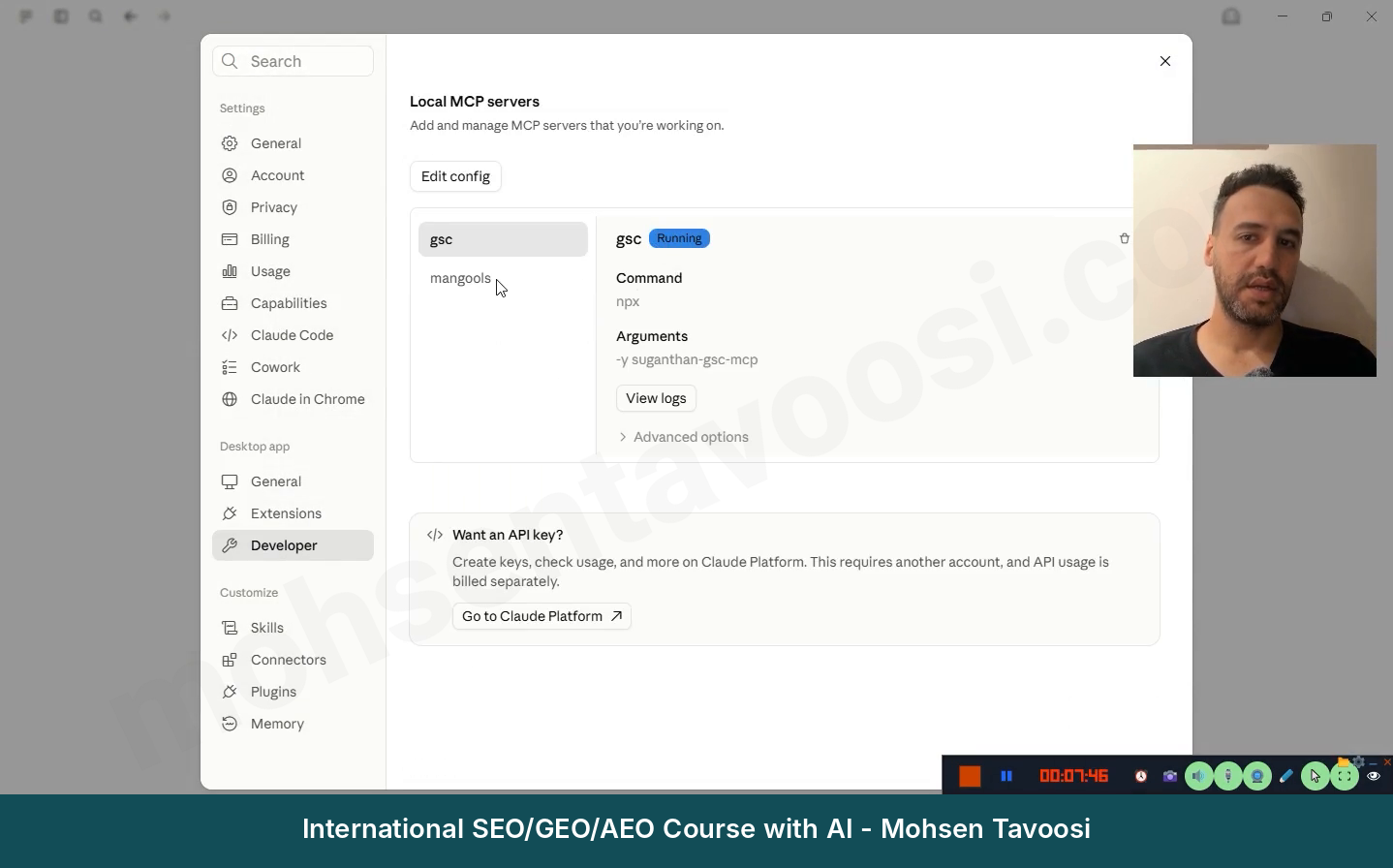
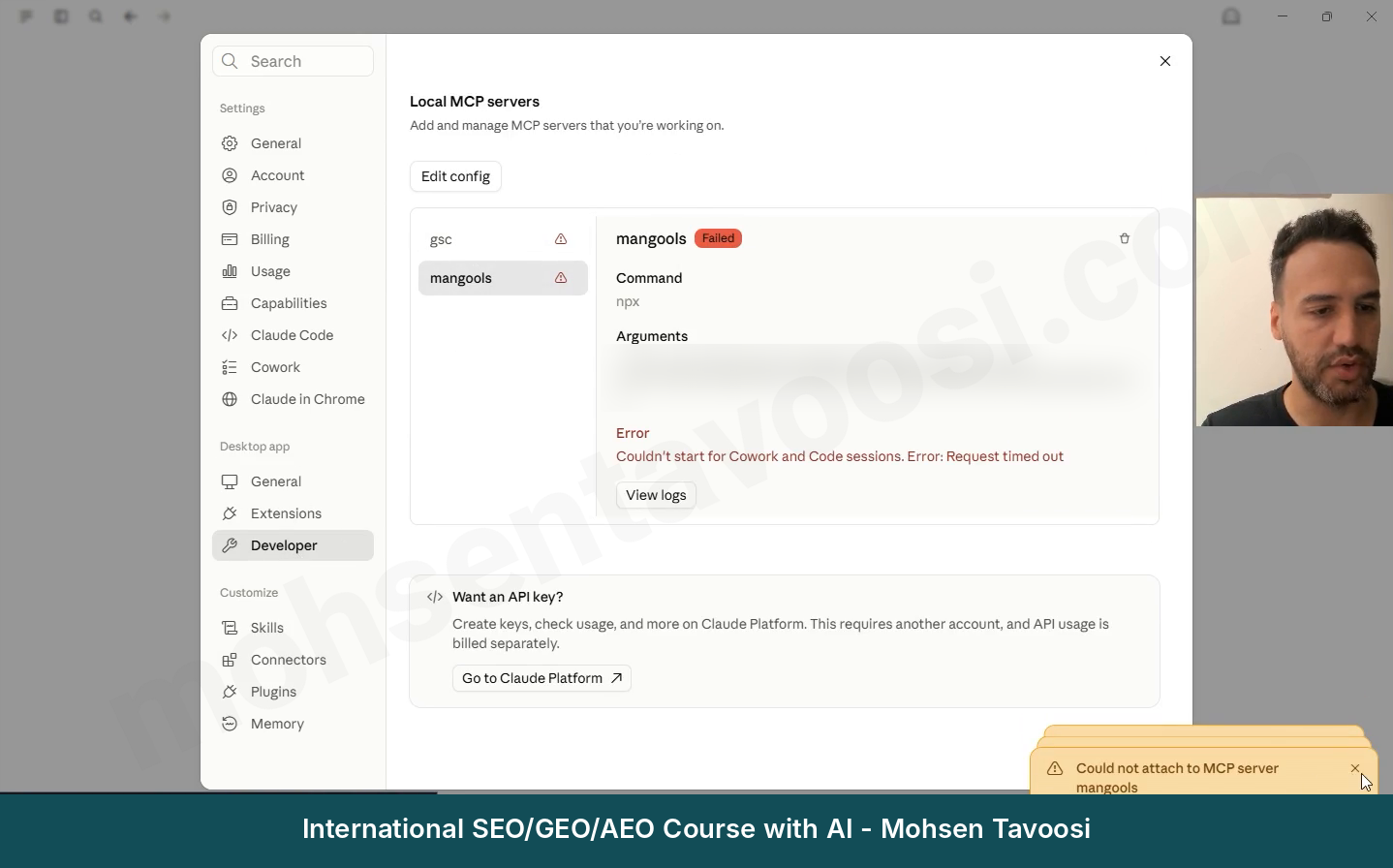
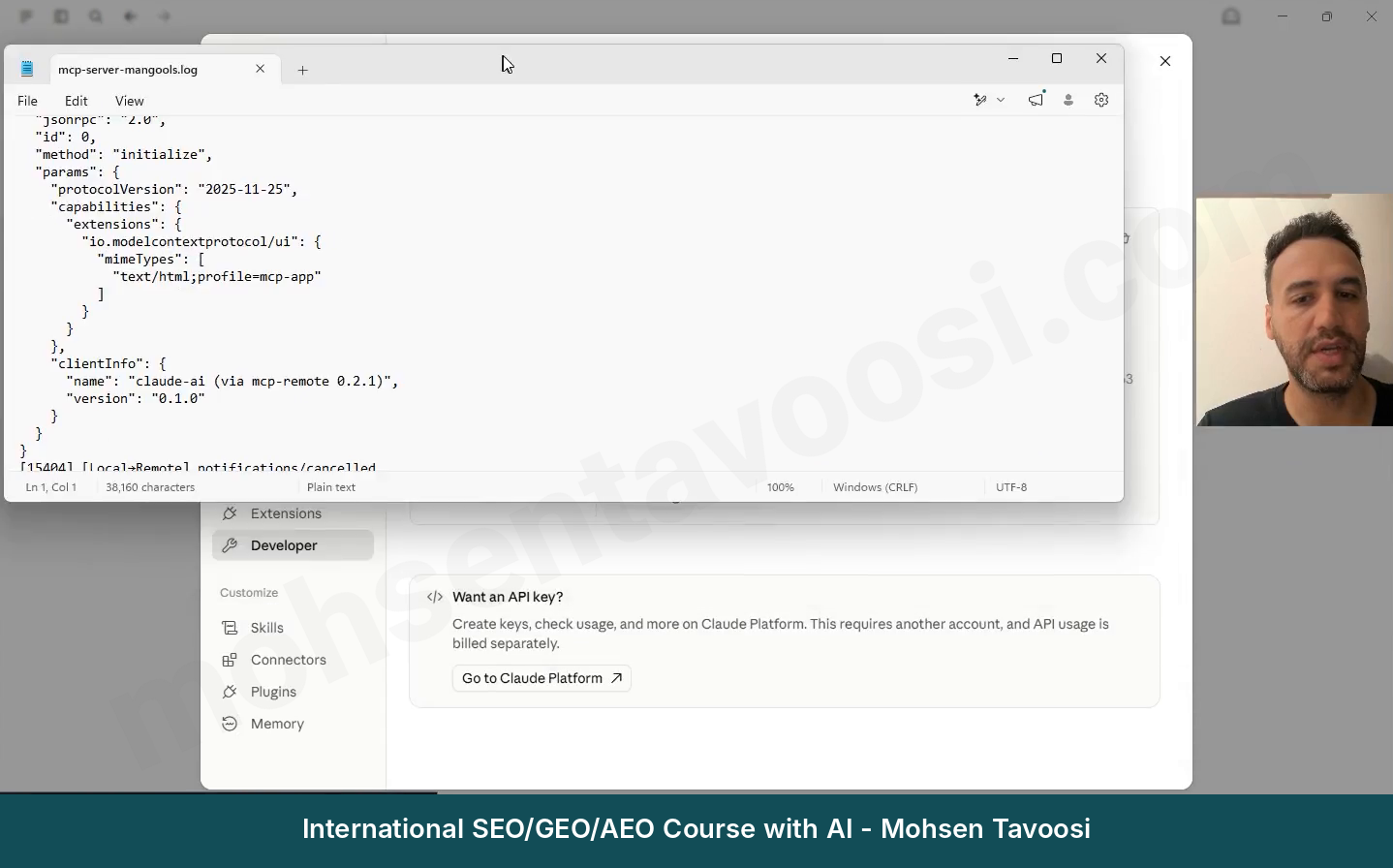
If it says Failed instead of Running, or shows an error, click the View logs button and give the log text to Claude, so it can tell you where the problem is. Usually the config file has a mistake, or it was reset or deleted. Also see the errors and quirks section further down.
Now the test. Open a new chat in the Claude Desktop app itself and write something like this:
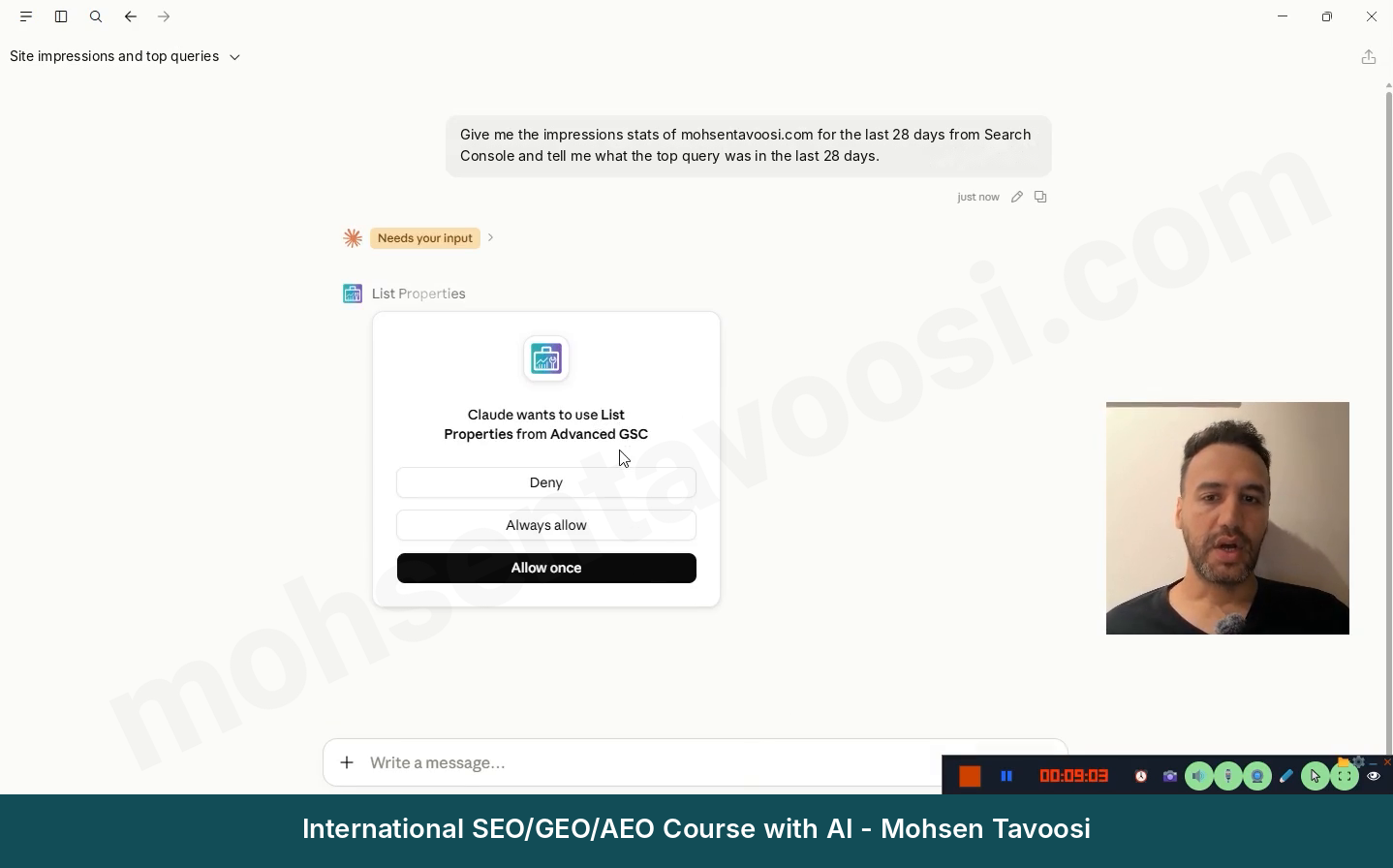
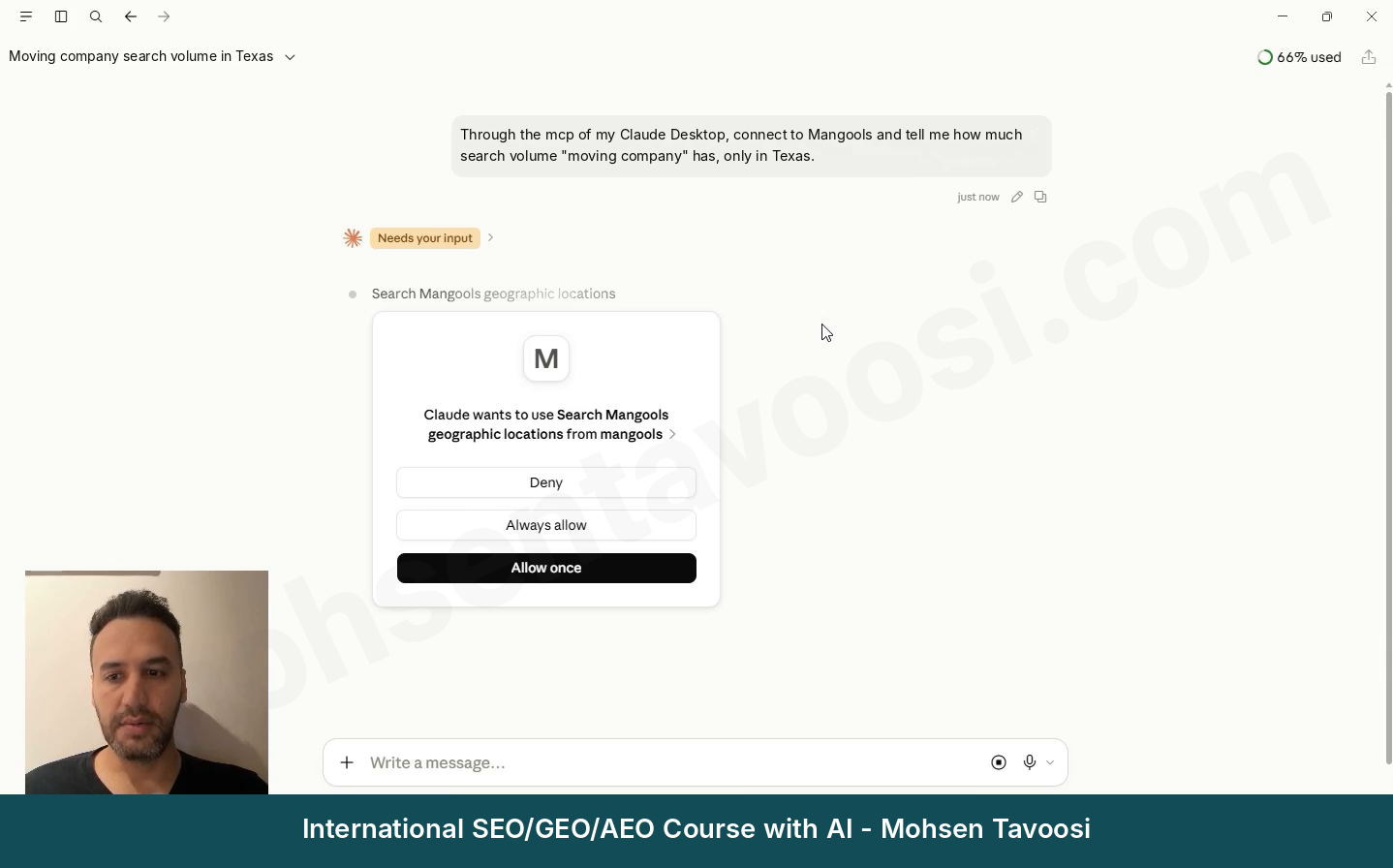
If Claude shows a permission window, click Allow once or Always allow.
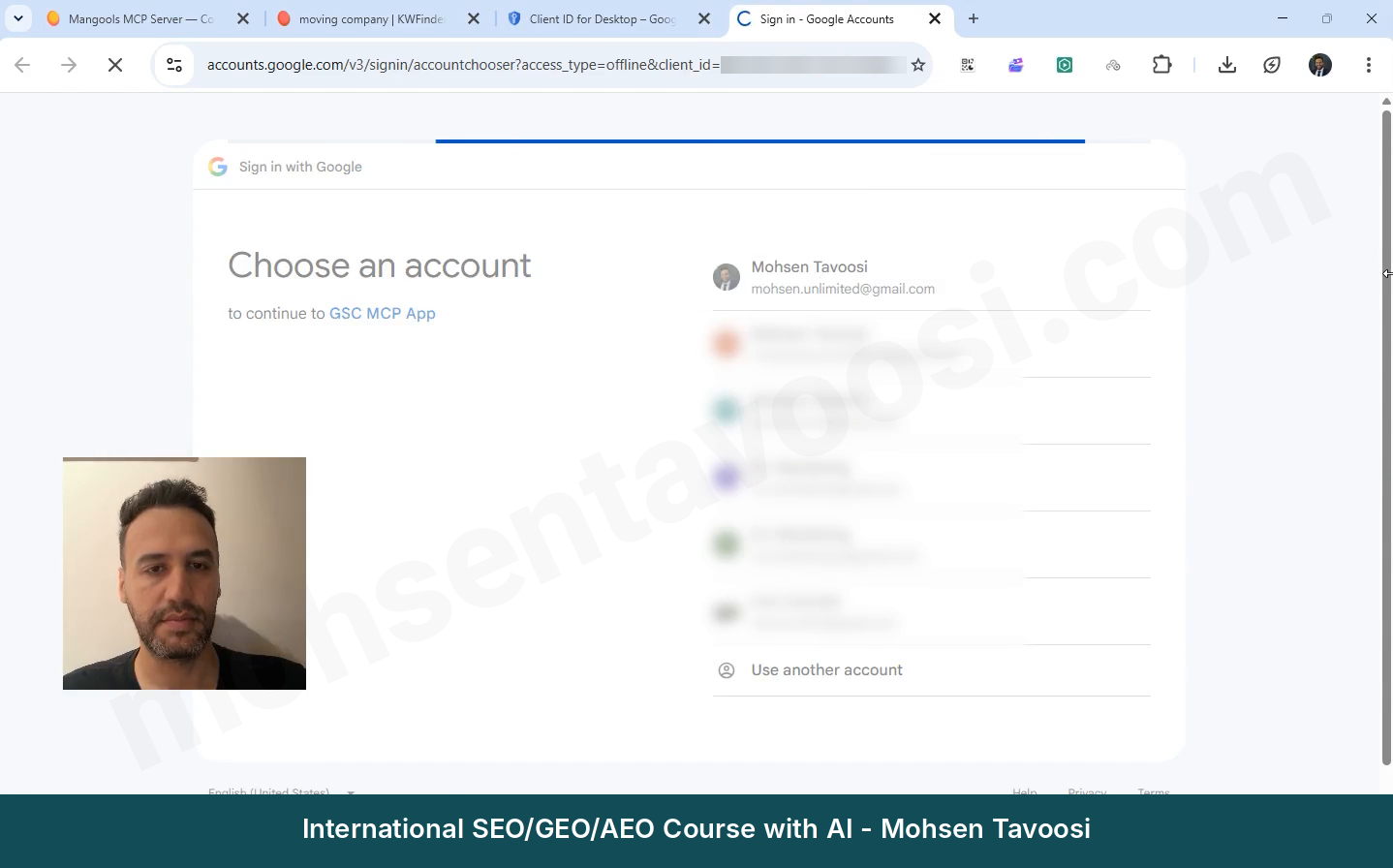
On the first run, the browser opens and asks you to log in to Google. Choose the account that has access to the site.
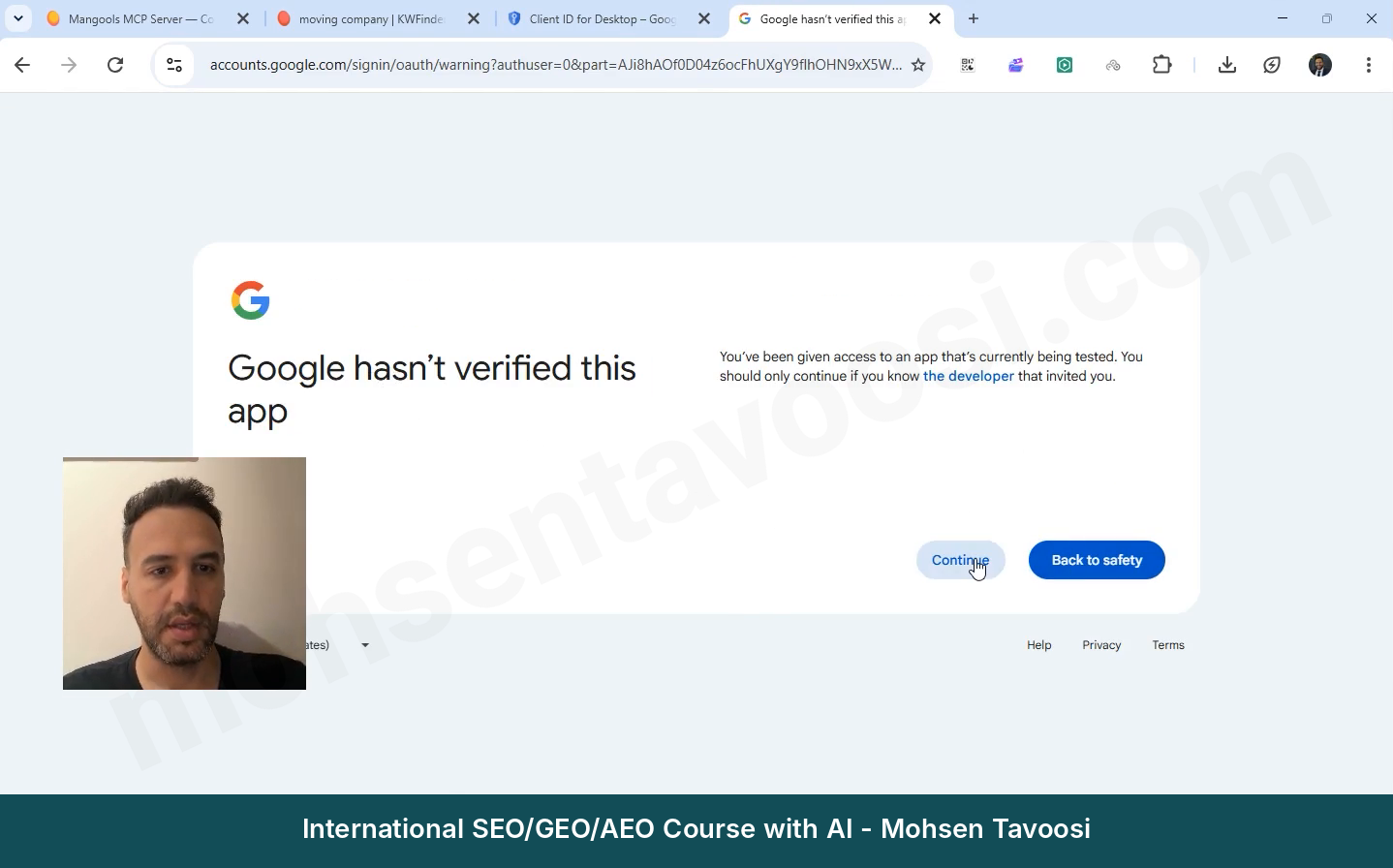
Next, a page appears that says Google hasn’t verified this app. Don’t panic! This is normal, because you built the app yourself and Google hasn’t reviewed it. Click Continue (in some versions, first Advanced and then the app name).
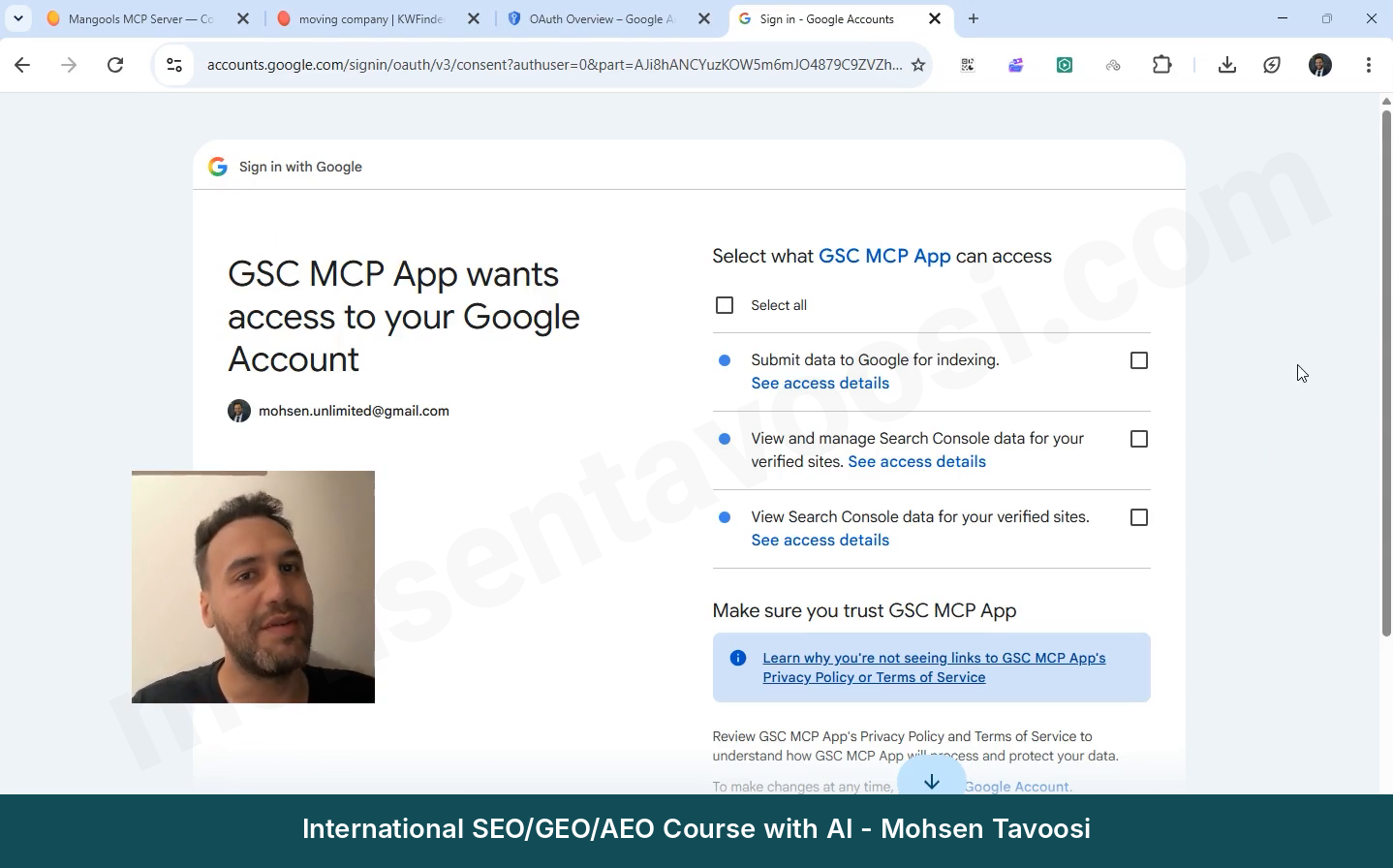
Then the permissions page appears. Tick the boxes and click Continue.
Once the Authentication successful page appears, you’re done! Close the tab and go back to Claude.
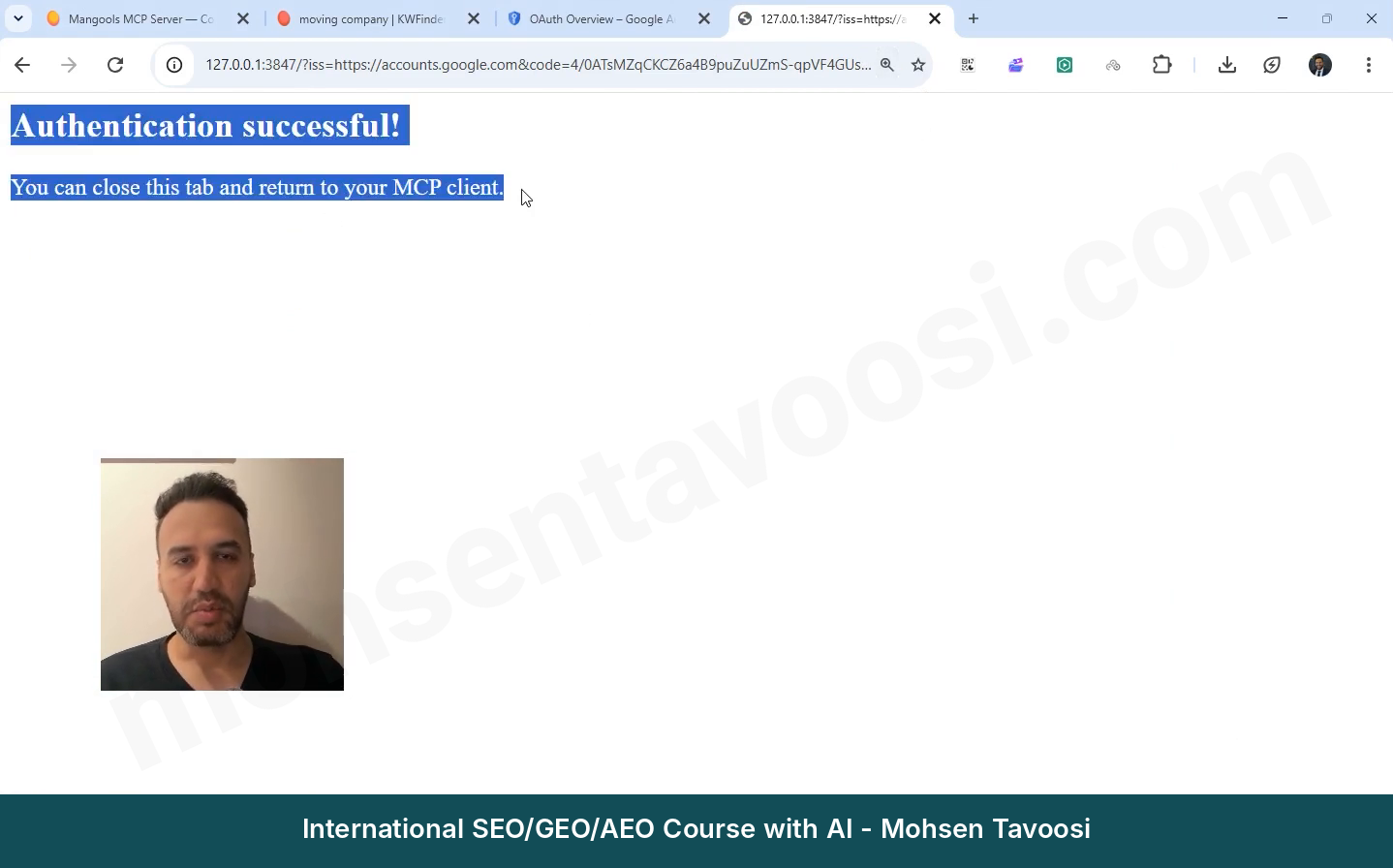
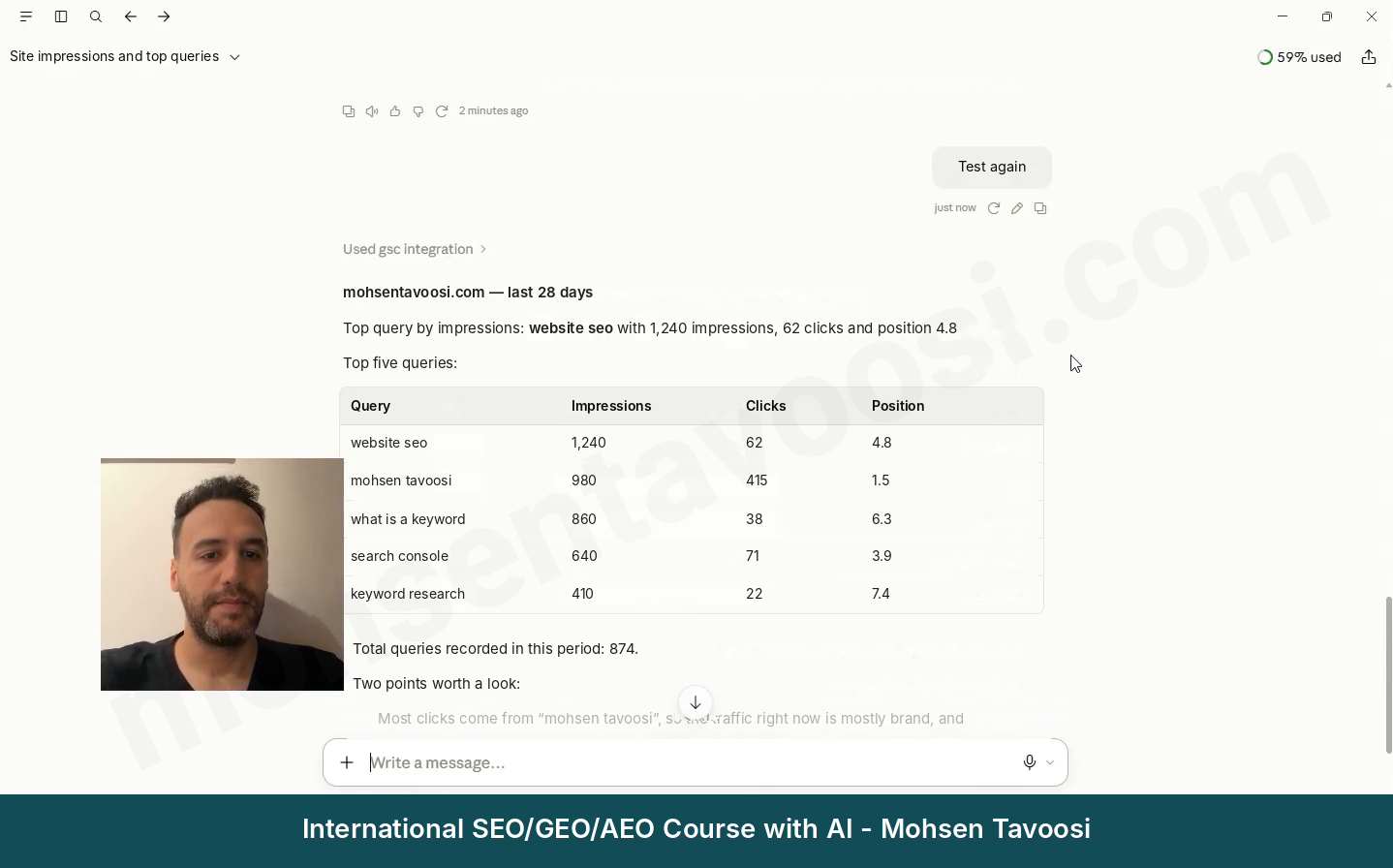
In the video for this guide, I left the errors of this step in on purpose, so you can see them. Claude connected to the wrong connector once, gave a key error once, failed to open the browser page once, and once threw an error for no reason at all, which went away after I closed and reopened it. I kept these in so that if you hit them too, you don’t think the problem is you! Almost everyone hits the same ones. In the next section, I’ve listed all of them with their fixes.
What are the errors and quirks of connecting Search Console to Claude, and how do you fix them?
I ran into every one of these, either on my own computer, on my second computer, or while recording the video. My general rule is to give Claude the exact error text, or a screenshot of the Developer page, before you guess anything.
Why does Claude show a connection error when nothing has changed?
This is the most common quirk of this method! On the Developer page you see an error or Failed next to the server, or Claude says it can’t connect to Search Console, while the config and the key file are both in place. Sometimes it fixes itself after a few moments! When it doesn’t, close Claude completely. That means quitting from the icon next to the clock too, and checking in Task Manager that no Claude process is left. Then open it again. In my own video, one close and reopen fixed it, with no other change.
What causes the Request timed out or Couldn’t start this server error?
Claude gave up waiting before the server started. Every time it runs, the npx command checks online whether there is a newer version, and on a slow or unstable connection this takes more than a minute.
A separate message says Couldn’t start this server for Cowork and Code sessions. It means the Cowork and Code modes run their own separate copy of the server, and that copy didn’t start. It doesn’t necessarily mean you’re not connected in a normal chat. Test in a normal chat first. These first timeouts usually go away on their own.
If it keeps happening, run this once in Command Prompt to install the package on your system:
Then, in the config, point directly to the installed file instead of npx:
The rest of the block (the env section) stays as it was. With this change, the server starts in a second or two!
Why does the config file get wiped every now and then?
Yesterday it worked, and today there is no server on the Developer page! There are two possible reasons. Either the file was saved while Claude was open and Claude wrote over it when it closed, or the file was saved in Notepad as UTF-8 with BOM, so Claude couldn’t read it and created a new one from scratch. To fix it, follow the rule from step 8. Save the file only when Claude is fully closed, use UTF-8 without BOM (you choose it at the bottom of the Save As window), and keep a backup next to the file.
Why does no server start, and why did they all disappear at once?
It means the JSON file is broken. These are the mistakes I’ve seen myself:
- An extra brace before a comma that closed the whole file too early.
- Command Prompt commands pasted into the config file by mistake. Commands like del or npx … setup always run separately in Command Prompt, never inside the file.
- A missing comma between two server blocks, or an extra comma after the last item.
- A single backslash in the file path.
- A duplicate line in the file.
The easiest way is to give the whole file to Claude. Ask it to check the braces and commas and to return the complete, fixed file with all the earlier sections in it.
The server is Running, but Claude says it has no key or auth settings. Why?
Most likely the “env” section of the config is missing or broken, and the server is running without the path to the key file. To make sure the whole file is valid, run this in PowerShell:
If it gives an error, the JSON file is broken. If it doesn’t, check the names and the path in the env section one by one.
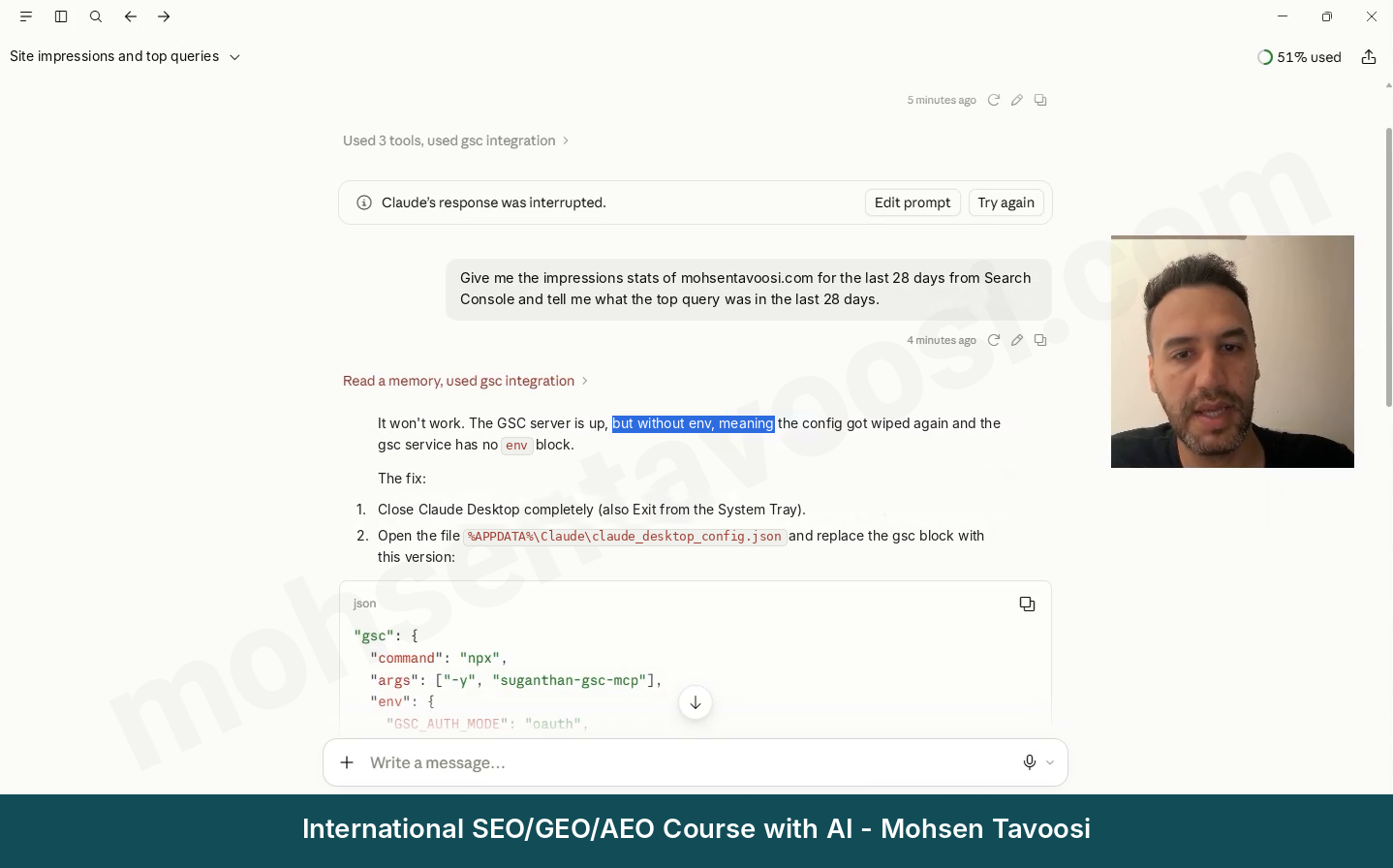
What causes the credential error or “Claude’s response was interrupted”?
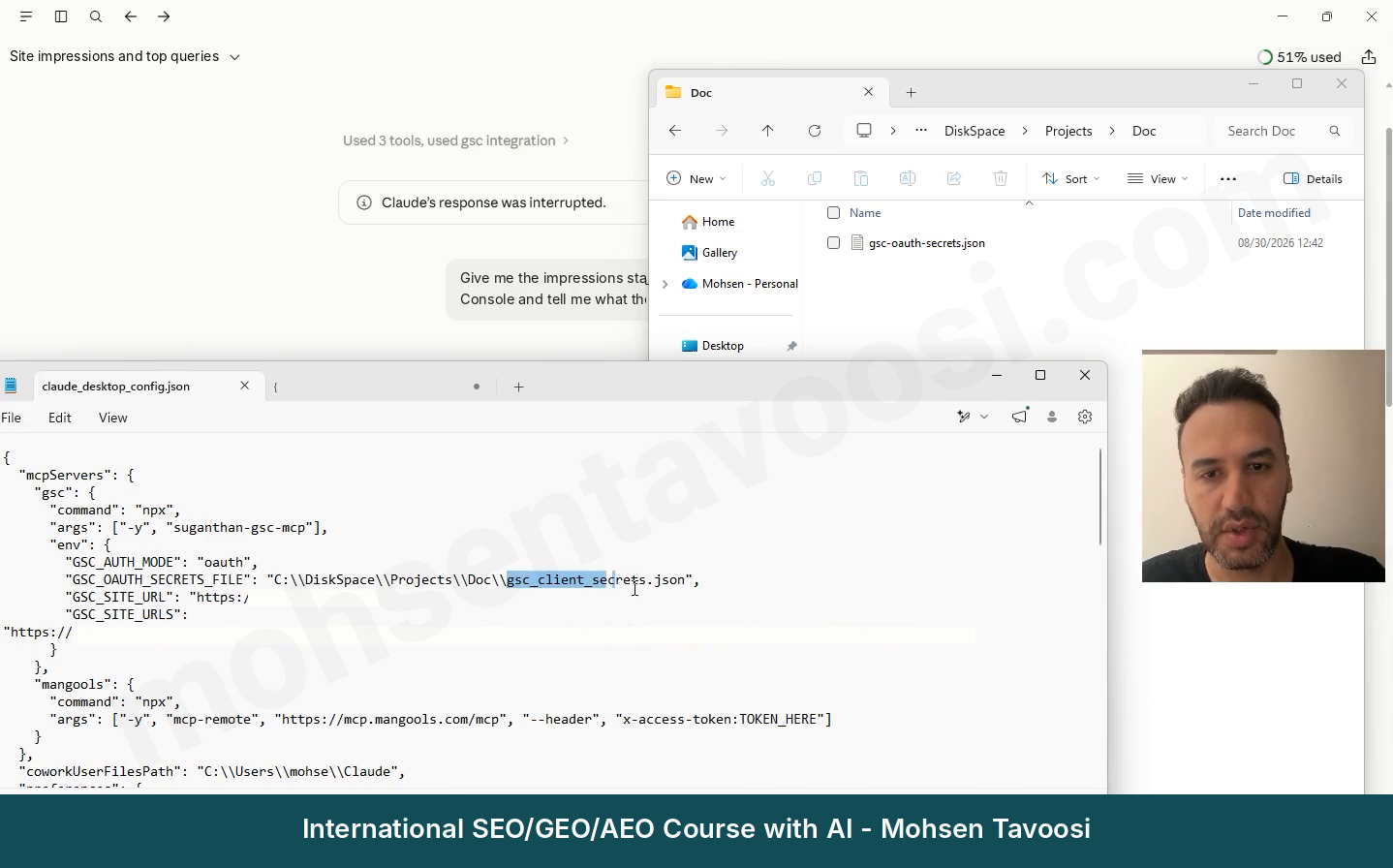
I hit exactly this one in my video! In the config I had written gsc_client_secrets.json, but the file on disk was called gsc-oauth-secrets.json. The separators (underscores versus hyphens) and one word (client versus oauth) were different, and that was enough to break it! Both names, in the config and in the folder, must match letter for letter. Also check the .json extension, the doubled backslashes, and that the file hasn’t been moved.
Why does Claude connect to the wrong connector?
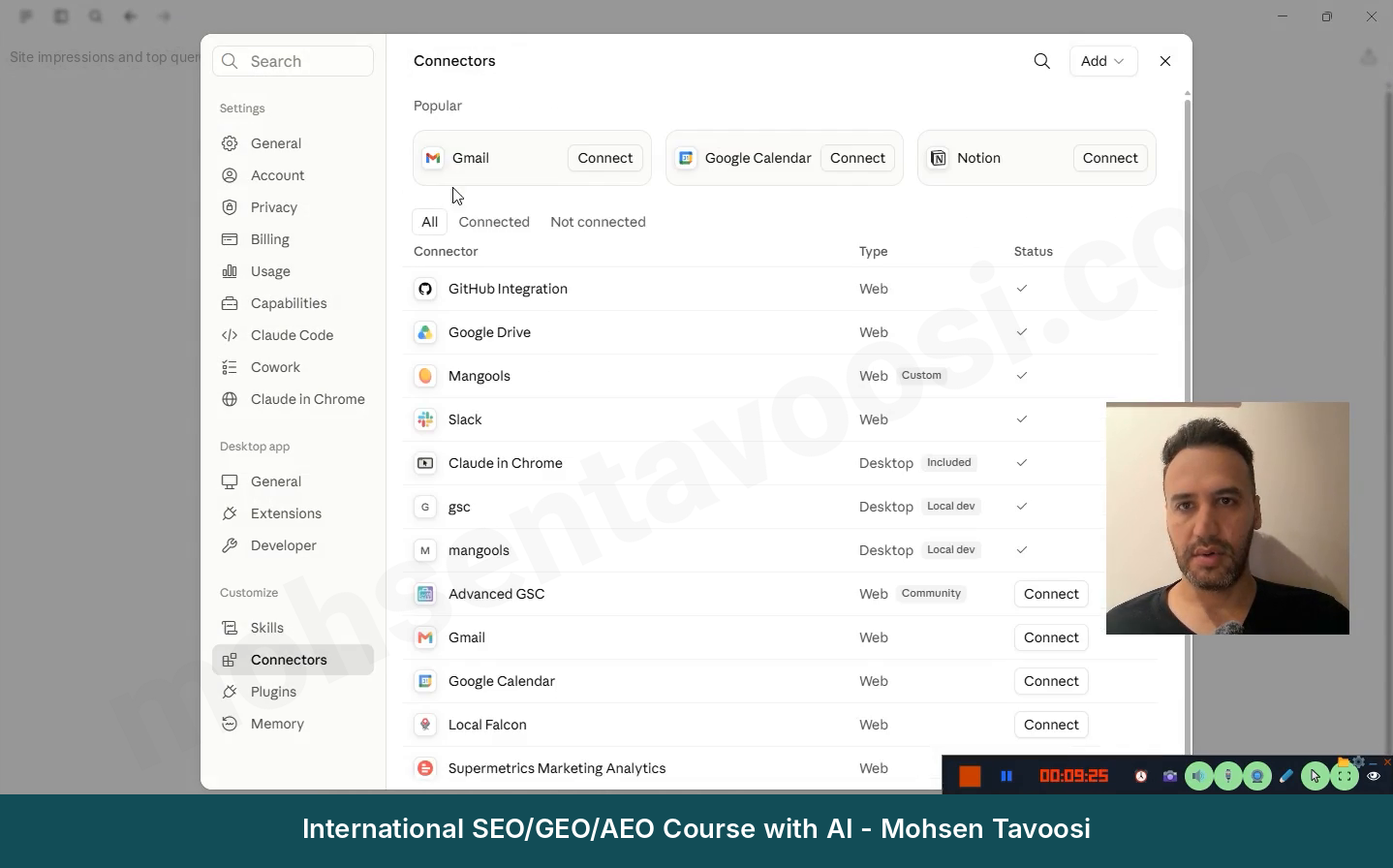
If you added another Search Console connector to your account before (usually an online one), Claude may go to that one. In that case, the permission window shows the other connector’s name. In the video, the name of another online connector came up for me. Click Deny, go to Settings and then Connectors, and Remove the extra connector, so Claude only uses the server you built yourself.
Why doesn’t the Search Console tool show up in my chat when the server is Running?
You’re probably on claude.ai (in the browser) or in the mobile app instead of the Claude Desktop app itself. A server on your computer is only visible in chats inside that Desktop app, even if a browser is open on the same computer. Send the same request in a new chat inside the Claude Desktop app.
What does the Access blocked error during the Google login mean?
It means your app is in Testing and the email you log in with is not on the Test users list. Even if you own the project! Go to Google Auth Platform and then Audience, add your email under Test users and click Save. Still the same? Try an Incognito window or wait a few minutes. Clicking Publish app fixes it for good.
Why do you have to log in again every 7 days?
Because the app is still in Testing, and in that mode Google cancels the token every 7 days. In Audience, click Publish app and confirm. Since you are the only user, nobody asks you for a review.
How do you fix “This site can’t be reached” on 127.0.0.1 after the Google login?
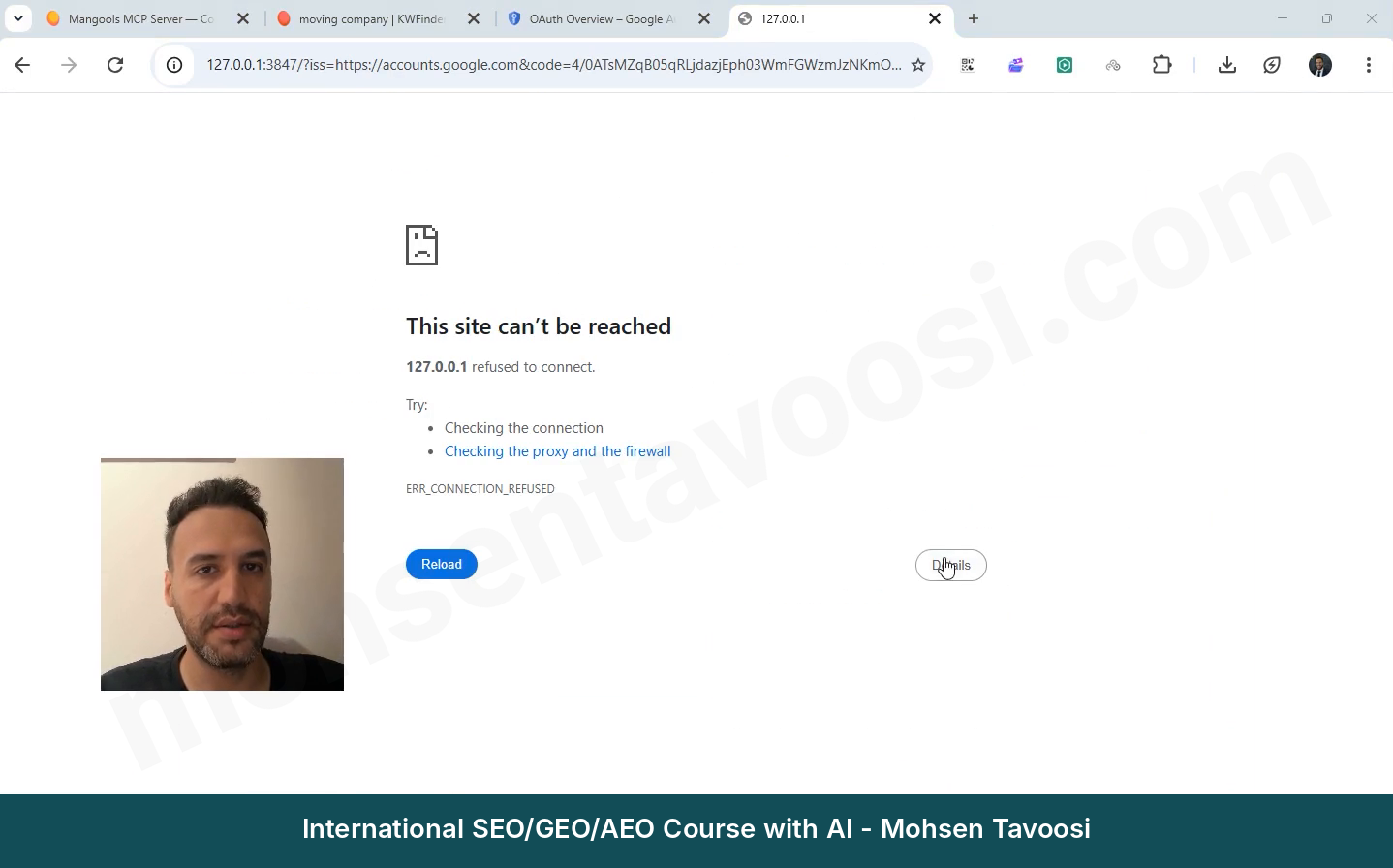
This happened in my video too! After you approve on the Google page, the browser goes to an address with 127.0.0.1:3847 and shows ERR_CONNECTION_REFUSED. This happens because the server on your computer only waits about 2 minutes for the login response. If the login takes longer, or the server restarted in the middle, nothing is waiting at that address anymore. Close the tab, send the request again in Claude, and finish the login quickly this time. For me, it was fixed after I closed and reopened Claude once.
Why do you get a redirect error during login?
You created the key (the OAuth Client) with the Web application type. Create a new key with the Desktop app type and replace the old JSON file with the new one.
What if the Google token expired or you logged in with the wrong account?
If every request fails after you change the account or the project, the old token is still on your computer. First, ask for a simple overall report (for example, “summary of the last 28 days for mohsentavoosi.com”). In my own test, this request opened the Google login again. If it doesn’t, run these two commands separately in Command Prompt. Never paste them into the config file:
Then log in again with the right account.
What does the EADDRINUSE error on port 3847 mean?
An earlier copy of the server is still running in the background and has taken the port. Close Claude completely, end the Node.js processes in Task Manager with End task, and open Claude again.
Why does one site return no data while the others do?
If you see the message User does not have sufficient permission or You do not own this site, the account you logged in with has no access to that site, or the site address format is wrong. Either log in with the right account, or add your account’s email to that site in Search Console, under Settings and then Users and permissions. Not sure about the format? Try all three forms, sc-domain:example.com, https://example.com/ and https://www.example.com/.
If everything is right and only one site returns a 403 (Forbidden) error, leave your own connection alone. In my own case, this error came from the hosting settings of that site itself, and the problem wasn’t on our side! It has to be checked with that site’s host or technical team.
Why does Claude only know some of my sites?
Claude’s multi-site dashboard tool only shows the sites you wrote in GSC_SITE_URLS. Other sites in your Google account don’t appear there. Add the site to this list in the right format, save with Claude closed, and open Claude again.
Some tools of this server (like URL inspection and the sitemap list) don’t ask which site you mean. They always run on the default site (GSC_SITE_URL). So always check the domain in the answer. To work on another site, switch the default site to that one for a while.
Sending URLs for indexing doesn’t work, but the reports do. Why?
Either you didn’t enable the Web Search Indexing API (step 4), or your account doesn’t have Owner access in Search Console. Full access is not enough for the indexing tools.
Where is the server log?
When the View logs button doesn’t open, you’ll find the logs in this folder:
Look for the file whose name is mcp-server- followed by your server’s name (for example, mcp-server-gsc-mohsentavoosi.log). Give its last lines to Claude.
I’ve taught these errors, plus dozens of other points about daily work with Search Console data, fully and step by step in the SEO course.
How do you add another MCP (for example, Mangools) to Claude Desktop?
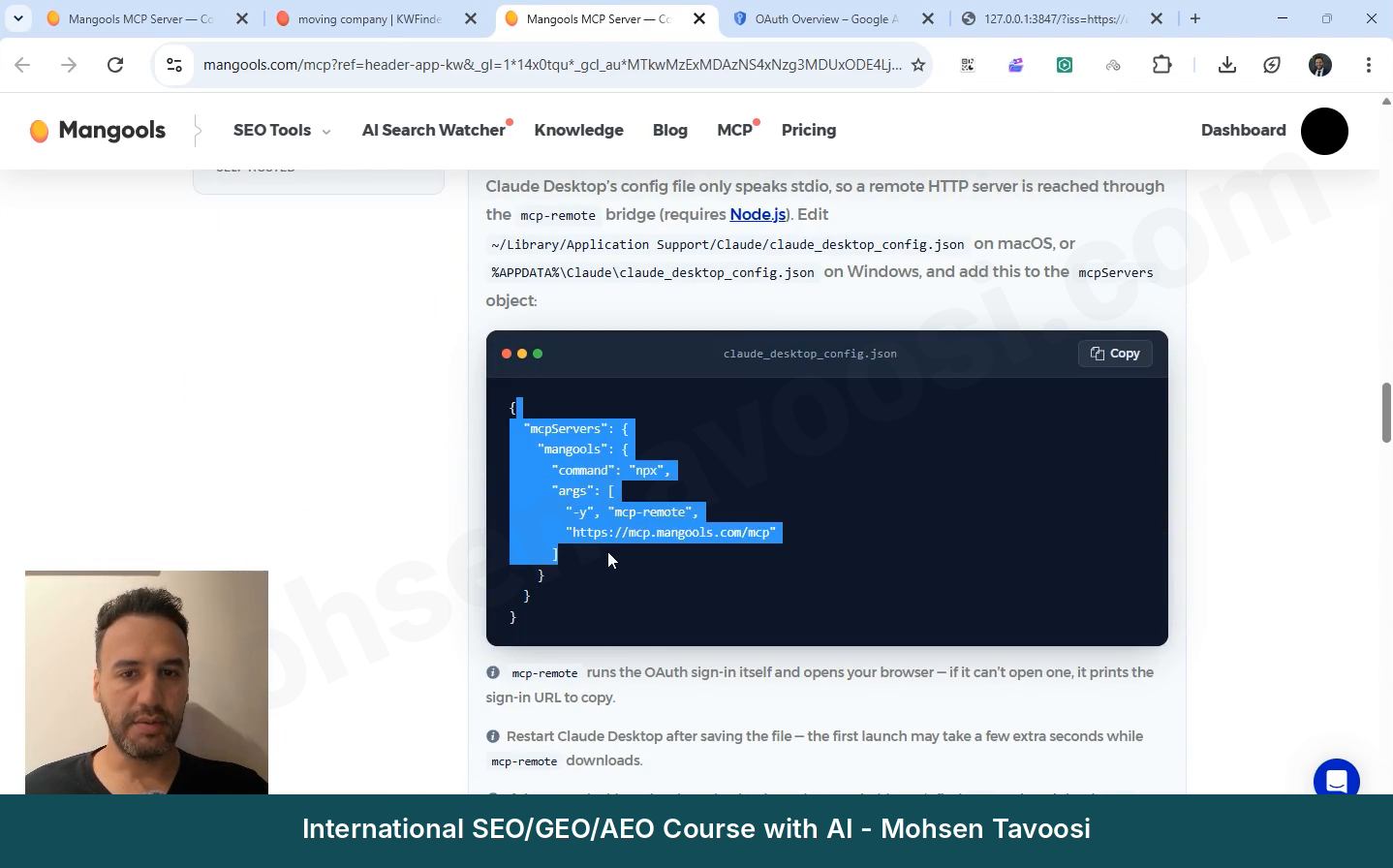
Once Search Console is connected, adding the next tool is much easier! In the same config file, right after the closing brace of the Search Console block, you put a comma and add the next block. As an example, I’ll add Mangools:
The command and args part usually comes from the tool’s own site or from Claude, and they get it right. What you have to add is your own key or token. Log in to your account on the tool’s site and look for an MCP or API section. In Mangools, it’s called Connect your AI. Copy the token and put it only in place of TOKEN_HERE. Don’t touch the rest of the line!
This part has two quirks too:
- Don’t put a space after the colon in x-access-token. The right form is
x-access-token:TOKEN. Writing x-access-token: TOKEN, with a space, breaks it. - If a tool doesn’t give you a token, delete the header and token part of the line. mcp-remote then opens that tool’s login page in the browser by itself, just like Search Console did.
mcp-remote is not an app, and it has no icon for you to look for. Claude runs it behind the scenes from the config file. You only close Claude completely, open it again, and wait a few seconds, because the first time it has to be downloaded.
You might ask why I don’t add Mangools directly in the Connectors of Claude on the web. I tried! For the token to be sent in the request header, the account needs a Request headers option, and mine didn’t have it. That’s why I connect everything in Claude Desktop!
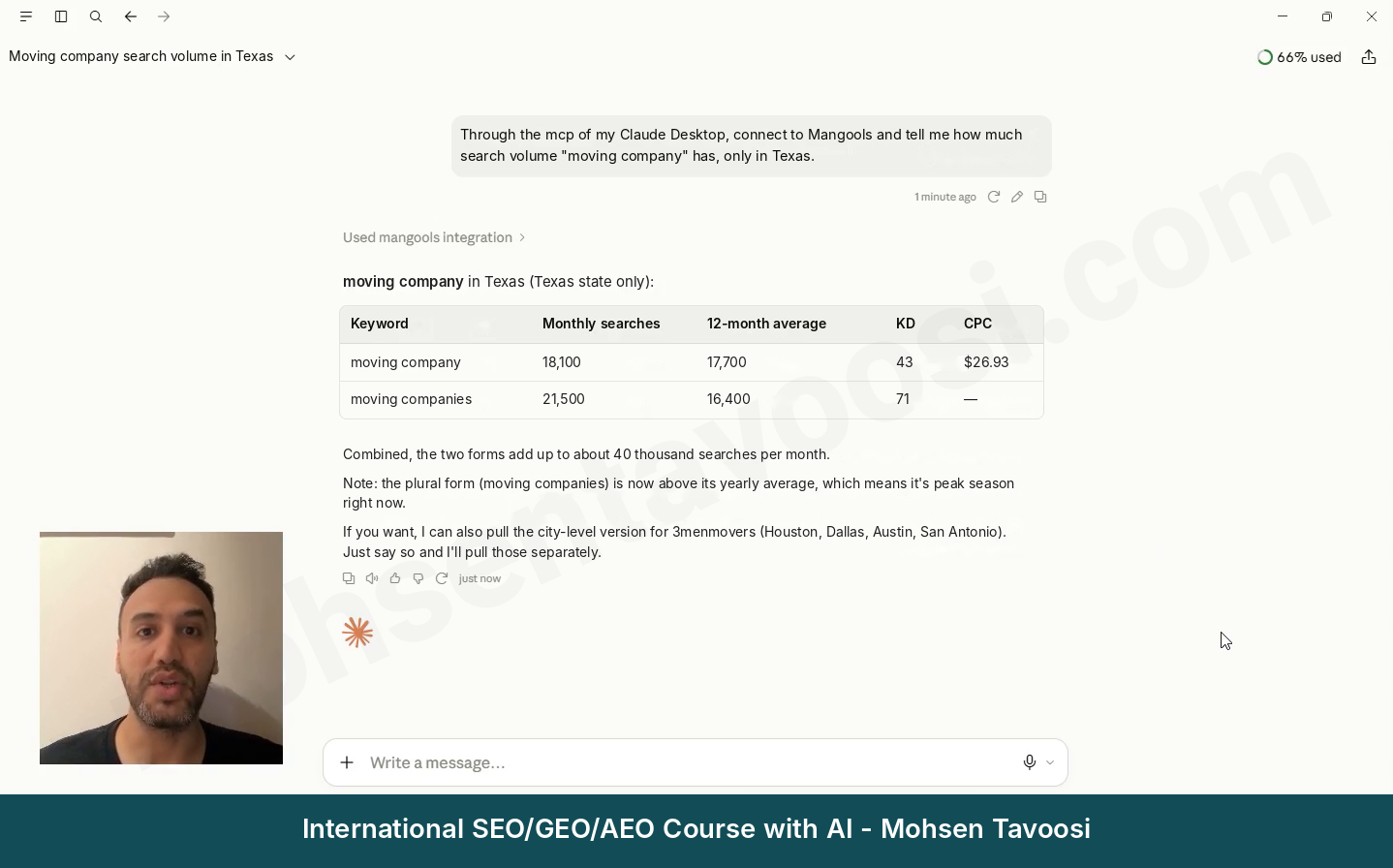
After you fully close and reopen Claude, send a test request. Claude asks for your permission and answers with real data.
What can you do after connecting Search Console to Claude?
This is where the real work starts! When Claude has direct access to Search Console data, you stop exporting files and building tables. You just ask questions, for example:
- Which keywords rank between 4 and 15 and have high impressions
- Which pages compete with each other for the same keyword (cannibalization, meaning pages of one site competing against each other)
- Which pages have dropped in the last few months
- Send these 20 new URLs for indexing
Every number comes straight from Google’s API, and Claude doesn’t make them up. But Claude’s interpretation can be wrong. For example, it may blame an algorithm update for a drop without any evidence. Or it may count zero impressions on a low-search keyword as a drop, when no impressions are recorded at all if nobody searched for it! So for reports, ask Claude to write only the numbers from the data and not to guess causes. And remember that no SEO work shows results in less than 6 months.
Which decision to make with this data, which page to keep, which one to merge and which keyword deserves your time, is something I’ve taught for hours on real projects in the SEO course. AI only runs the method you teach it, faster. You need to know that method yourself first! I’ve covered this whole method, from keyword research to reporting, in my guide to AI for SEO.
I’m Mohsen Tavoosi, and I wrote this guide from my own experience on my sites and projects. If you want to use this data for real SEO on your site and see the decision behind each Search Console number, take a look at my SEO course. The rest of my tutorials are on mohsentavoosi.com.
Frequently asked questions
What is a Google Search Console MCP server?
It’s a small program that keeps your Google permission, pulls data from the Search Console API and passes it to Claude through MCP, the protocol Claude uses to talk to other tools. In this guide, the server is suganthan-gsc-mcp, a free open-source program with about 28 tools, and it runs on your own computer.
What is the difference between a GSC MCP server and the Google Search Console API?
The API is Google’s own access point to your Search Console data. A GSC MCP server is the program that calls that API for you and gives the answers to Claude in a form Claude understands. That’s why you can simply ask Claude a question, without dealing with the API yourself.
Does connecting Claude to Search Console cost anything?
Connecting is free. You pay nothing for the server, the Google Cloud project or the Search Console API. You only need a paid Claude plan, since the usage limit of the free plan runs out very fast.
Does this Search Console MCP work in Claude on the web or on mobile?
No. Because the server runs on your computer, only the Claude Desktop app on that same computer can see it. When the computer is off, the connection stops working too.
Has Google released an official MCP server for Search Console?
No, not at the time of writing. That’s why this guide uses a free, open-source server that you run on your own computer.
Should I use a ready-made online connector instead?
An online connector also works on the web and on mobile, and it keeps working when your computer is off. But it’s usually paid or has a small free quota, and your Google token stays with that company. This guide’s method is free and keeps the token on your computer, but it only works in Claude Desktop while your PC is on.
How many Google Cloud projects do I need for several sites?
Just one. Site access comes from your Google account, and the project has nothing to do with it. List all of the sites in GSC_SITE_URLS, separated by commas.
Which Google account should I log in with?
Use the account that has access to your site in Search Console, both in Google Cloud and in the login window. With any other account, Claude finds no site at the end. To send URLs for indexing, that account needs Owner access, because Full access is not enough.
Does this guide work on a Mac?
This guide is written for Windows only. All of its paths, commands and screenshots are Windows ones, so on a Mac the steps and the file locations are different.
Do I need to know how to code for this?
No! You open one text file, paste a few ready lines into it and save it. Being careful with the braces and the backslashes is the hardest part.
Why does Claude show no server after I save the config?
There are usually two causes. Claude was still running and rewrote the file when it closed, or the JSON has a mistake in it. Quit Claude from the icon next to the clock and check Task Manager, then give the whole file to Claude to check the braces and commas.
Is the “Google hasn’t verified this app” warning dangerous?
No. You built the app yourself, and Google simply hasn’t reviewed it. Click Continue!
How accurate is the data Claude gets from Search Console?
Claude reads the numbers straight from Google’s API, so they match what you see in Search Console. Claude’s interpretation of those numbers can still be wrong. For reports, rely only on the numbers in the data.
Is there a limit on the number of requests?
Google allows about 1,200 requests per minute for each site (according to the Search Console API usage limits documentation). In daily work, you practically never reach this limit.
Can I connect other tools like Mangools the same way?
Yes. You add another block to the same config file and paste in that tool’s token. For a tool with no token, mcp-remote opens its login page in the browser instead.